GETTING STARTED
Turn on push notifications to hear about new orders and bookings, even when your browser is closed.
With push notifications, your device alerts you even when the panel is closed. They come for every new customer order and every new scheduled one, when it's time to prepare your scheduled orders, for a new booking, a booking request or a customer's cancellation, and when your hours open the store while online orders are switched off. You turn them on separately on each device.
WHERE TO FIND IT
Account menu → Profile → Push Notifications
⤢ Enlarge
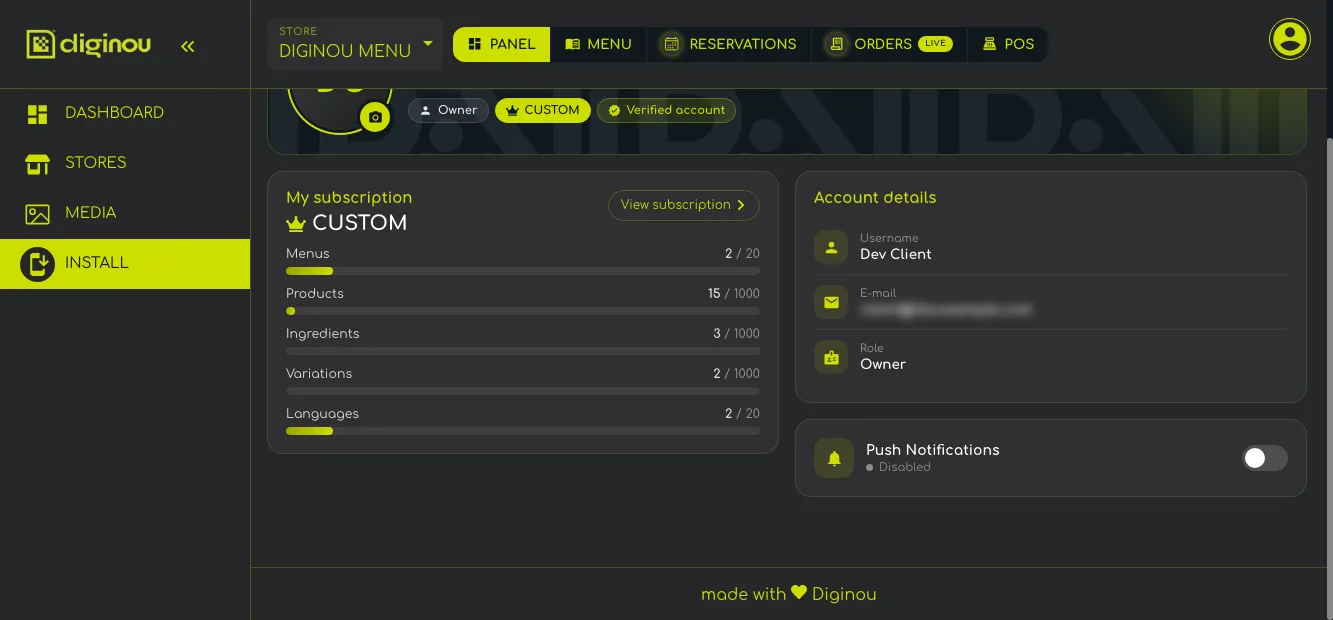
Your “Profile”: the “Push Notifications” switch is on the right, under your account details.
Click your photo at the top right, then Profile.
In the Push Notifications card, turn the switch on.
In the Enable Order Notifications window, click Enable and allow notifications in the browser's message. The card now says Active.
If you see Notifications Blocked, follow the steps for your browser. In Chrome: the lock icon, Site settings, Notifications, Allow.
Reload the page, or close and reopen the installed app. Once the browser allows them, notifications turn on by themselves and the card says Active.
TIP
Each notification's title is the store's name, and its text is in your device's language. Tapping it opens your orders, your bookings or SYSTEM. To stop them on a device, turn the same switch off: the card says Disabled. The alert for switched-off online orders is set in SYSTEM, with Remind me when online orders are switched off.
WATCH OUT
The setting applies to each device and browser separately: turn it on wherever you want alerts. With Logout the device stops getting them, and they start again when you sign back in, if the browser allows them. The owner gets them for every store, managers and the POS cashier for the stores you've given them; only the owner and managers get the switched-off online orders alert. Only customers' orders and bookings send a notification, not the ones you enter yourself, for example in the POS. If you don't see Push Notifications in Profile, the browser doesn't support them; on iPhone and iPad, install the panel on your home screen first.




