STORES
Add your store's tables, sunbeds or rooms, one by one or in bulk, and print their QR codes.
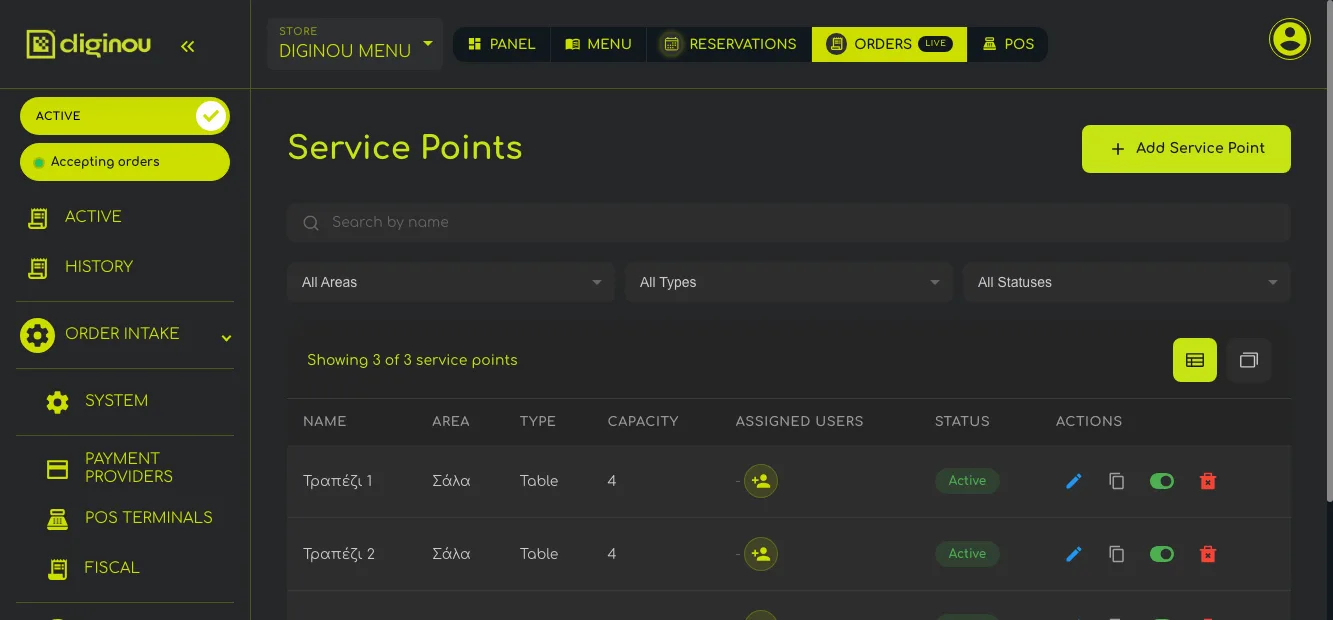
Service points are the places where you serve: tables, bar seats, sunbeds, rooms and more, each with an area, type, capacity and status. Dine In orders, reservations and the POS use them. The page shows the service points of the store selected under STORE, and you print each point's QR code from the QR GENERATOR.
WHERE TO FIND IT
ORDERS → ORDER INTAKE → DINE IN → SERVICE POINTS · RESERVATIONS → SERVICE POINTS
⤢ Enlarge
The “Service Points” page. “Add Service Point” is at the top right.
Click Add Service Point and choose it again in the list. If the page is empty, click Create Service Point.
Fill in Name, optionally Area, choose a Type (for example Table or Sunbed) and Capacity, and leave Active on.
Click Save. You'll see Service point created successfully.
From Add Service Point, choose Bulk Create.
Enter a Prefix (for example T), a Start Number and an End Number, then choose the Padding Width, area, type and Default Capacity.
Check the Preview and click Create All.
On the point's row, the icons do Edit Service Point, Duplicate, change the Status (Active or Inactive) and Delete Service Point.
If you rename a table, it asks Rename the table?: QR codes printed with the old name stop working, so print them again.
TIP
For table QR codes, go to MENU → QR GENERATOR and choose Multiple QR Codes (Service Points): you get one QR code for each active point. The filters above the list find points by area, type or status.
WATCH OUT
Each store can have up to 300 service points, with a capacity from 1 to 50. In bulk create, if a name already exists, nothing is created until you change it. An inactive point gets no QR code and takes no customer orders. A point with upcoming bookings can't be deleted (It has upcoming bookings) until you move them to another one. The page opens for the owner and managers; a POS cashier can't open it.




