PAYMENTS & RECEIPTS
Connect Viva Wallet to take cards online and at the POS, and to issue fiscal documents.
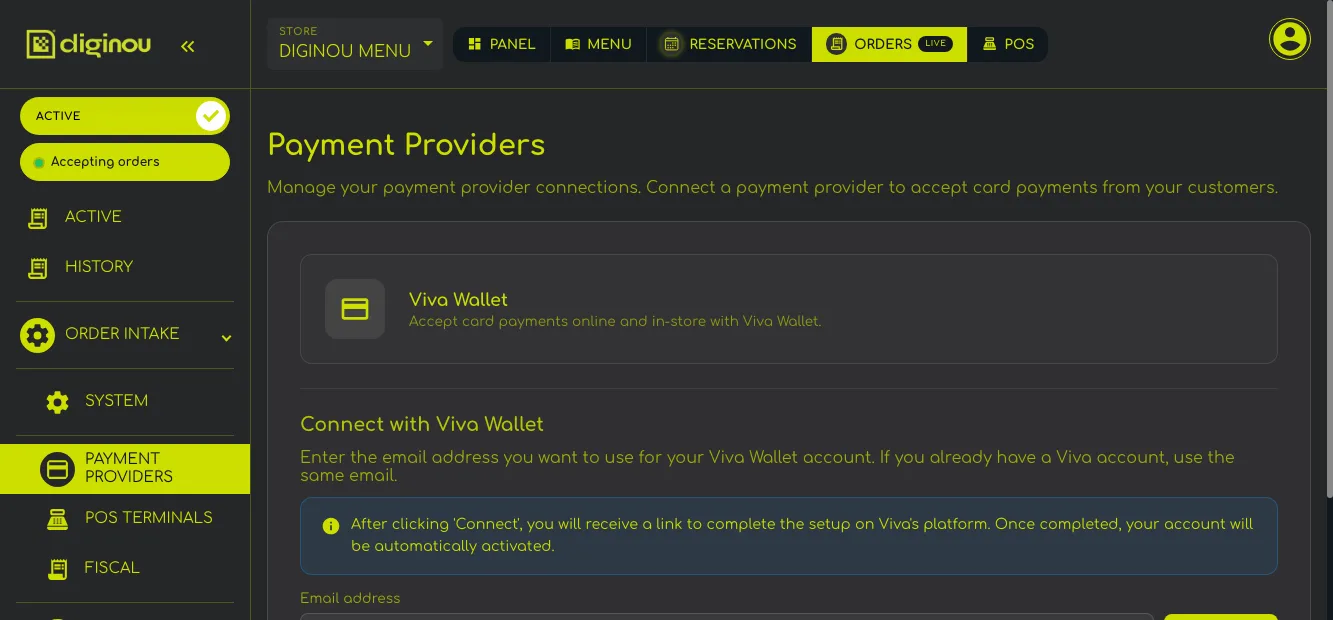
Payment Providers connects your account to Viva Wallet. There is one connection, and it covers all your stores. Card payments in the app, card at the POS, electronic fiscal documents and reservation charges all depend on it. You enter your email and finish the setup on Viva's site. This page shows the account status: Pending while the setup is unfinished, Active once it takes payments.
WHERE TO FIND IT
ORDERS → ORDER INTAKE → PAYMENT PROVIDERS
⤢ Enlarge
“Payment Providers”: enter your Viva Wallet email and press “Connect”.
Under Connect with Viva Wallet, type your email in Email address. If you already have a Viva account, use the same email.
Press Connect.
In the Account Created! message, press Open Viva Setup. Viva opens in a new tab. Finish the steps it asks for there.
While the account shows Pending, press Complete Setup on Viva to carry on with the setup there.
Come back to the panel and press Refresh Status. Once Viva activates the account, the status turns Active. Account Details then shows the Merchant ID, the Legal Name and the VAT Number.
If you see Suspended, Viva has suspended the account. Contact Viva support.
Press Disconnect.
In Disconnect Viva Wallet? press Yes, Disconnect, or Cancel if you change your mind.
TIP
Diginou automatically keeps a fee on every card payment through Viva, online or on the POS terminal. The note under the order types on the SYSTEM page (Order Intake) shows how much it is for your account.
WATCH OUT
Only the owner can open Payment Providers. Once you disconnect, customers can't pay by card, the POS CARD button locks and no fiscal documents can be issued until you reconnect.




