ORDER INTAKE
Keep App orders open a little longer, after your hours have closed the store.
Your store's hours stop App orders by themselves when you close. An extension lets you keep taking them a little longer, for every way of ordering, and then they stop by themselves. The hours themselves don't change. Waiter and POS orders are never stopped by the hours.
WHERE TO FIND IT
ORDERS → status line under the switch · PANEL → DASHBOARD → Online orders
⤢ Enlarge
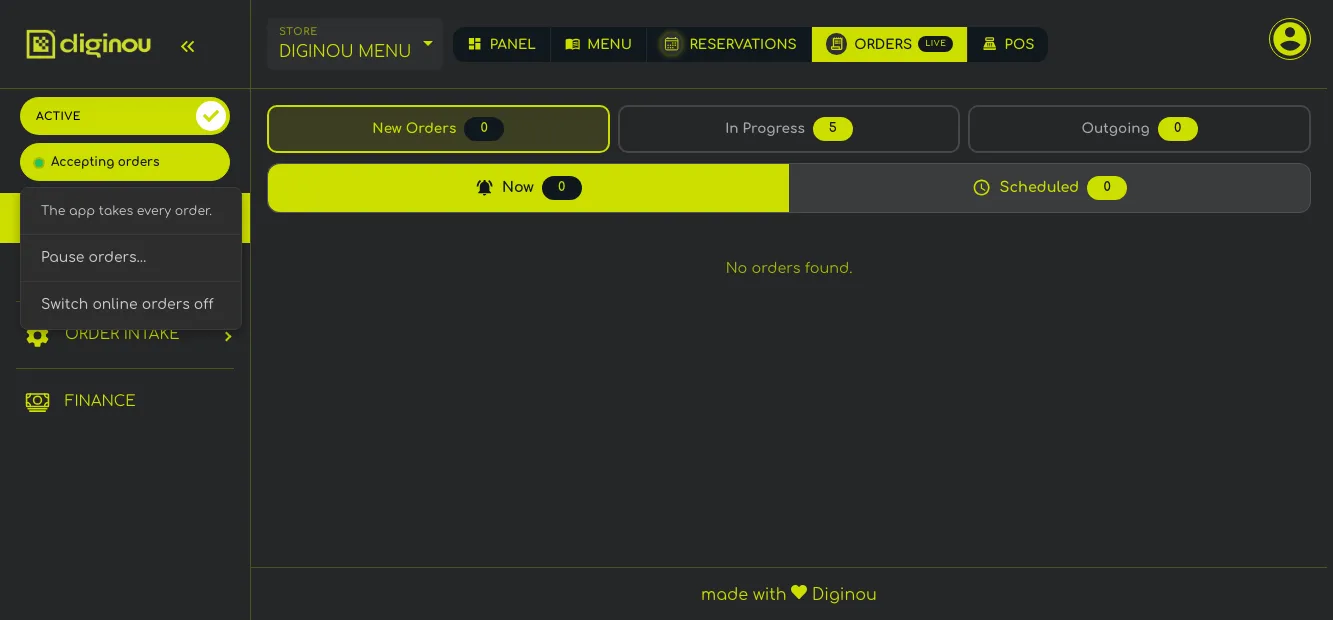
The status line under the switch opens these options. When the store closes by its hours, the extension shows here too.
When your hours close the store, the status line in the ORDERS side menu reads Closed (hours) with, for example, opens 09:00 below it. Press it.
Choose Accept orders past the hours….
Under Accept orders until when? pick 30 minutes, 1 hour, 2 hours or 4 hours and press Extend. The status reads, for example, Extended until 00:30.
The extension ends by itself at the time you chose, or earlier if your hours open in the meantime.
To stop earlier, press the status line and End the extension.
For more time, press Accept orders past the hours… again and pick a new duration. It counts from the moment you set it.
TIP
The same buttons are on the Online orders card of the Dashboard. Fifteen minutes before you close, the panel warns you that you are closing; Accept orders past the hours… appears as soon as your hours close the store. For a permanent change, change the store's opening hours.
WATCH OUT
Only the owner and managers can extend. The POS Cashier sees the status and can press End the extension. A pause ends the extension (This ends the extension past your hours.). An extension doesn't reopen online orders you have switched off: with Online orders off or Menu only it isn't offered.




