MENU & PRODUCTS
Serve the same menu in several stores and change in each one only what it needs.
One menu can be served by several of your stores. Categories, products with their price and photo, ingredients, variations and their order are shared: you change them once and they apply everywhere. What belongs to each store, that is which product is active, visible or suggested, the stock, the offers and the popup, you set separately, for the store you've selected under STORE.
WHERE TO FIND IT
MENU → MENUS → menu → Edit Menu → Store menus
⤢ Enlarge
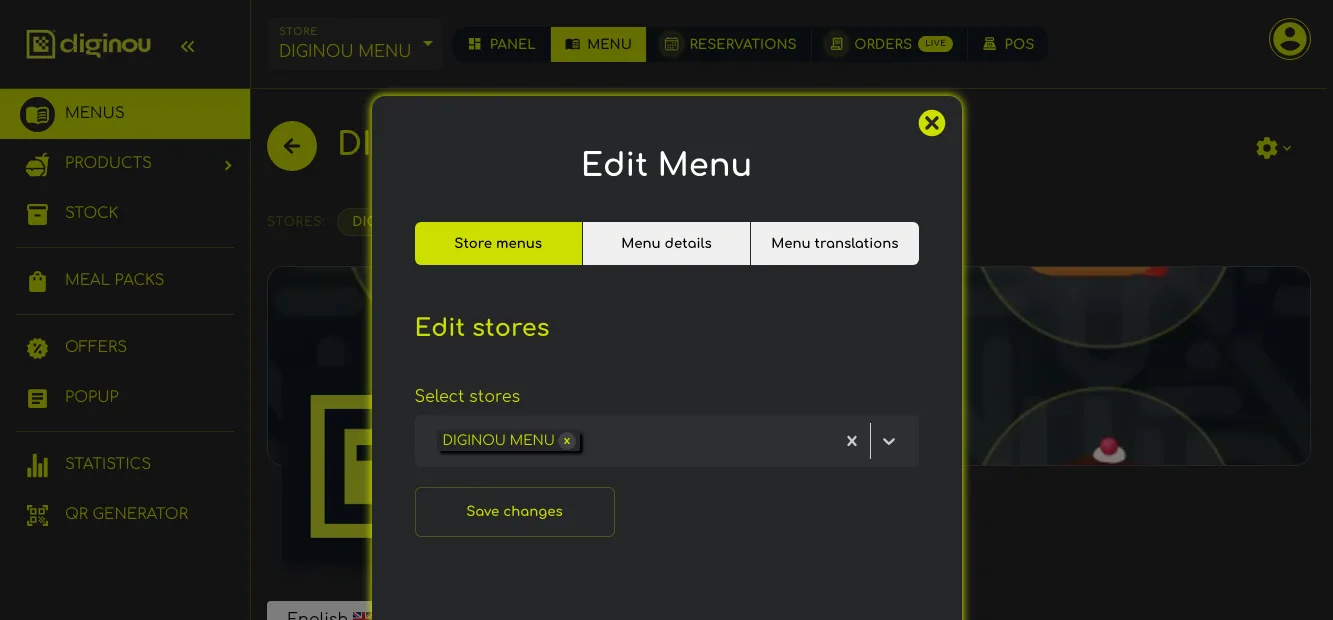
“Edit Menu” → “Store menus”: choose which stores serve this menu.
In MENUS, click the menu's card. Under the title you see the Stores where it is served.
Click one of them, or the gear and Edit Menu. The Store menus tab opens.
Under Select stores, add or remove stores and click Save changes.
Choose the STORE at the top. The Menus list and the MENU bar show only its menus.
In products, use Actions to change Enable / Disable, Visible / Invisible or Mark as suggested. The change applies only in this store.
On the OFFERS, POPUP and STOCK pages you see and change what applies in the same store. For another store, change STORE first.
TIP
The switches you set when you create a product apply in every store; you set differences afterwards, store by store. The Active and Visible switches of ingredients and variations are shared. Print Menu prints the menu as the store under STORE shows it, with its own available products and its currency. The menu's statistics count all stores together.
WATCH OUT
A product's price is the same in every store of the menu; offers, though, are per store. A store that is the only one serving a menu can't be deleted: you see, for example, The menu «Main menu» is served only by this store. Add it to another store or delete it first. A manager sees only the stores and menus you've given them.




