PAYMENTS & RECEIPTS
Choose which Viva terminal takes card payments at the till, on each POS device.
POS Terminals lists the card terminals of your Viva account. A terminal can be the viva.com Terminal app (SoftPOS) on a phone or tablet, or a Viva device. You choose the one that charges the POS on this device, because each till keeps its own choice. The terminal is only for card payments: fiscal documents are issued without it.
WHERE TO FIND IT
ORDERS → ORDER INTAKE → POS TERMINALS (and POS → gear → POS Terminals)
⤢ Enlarge
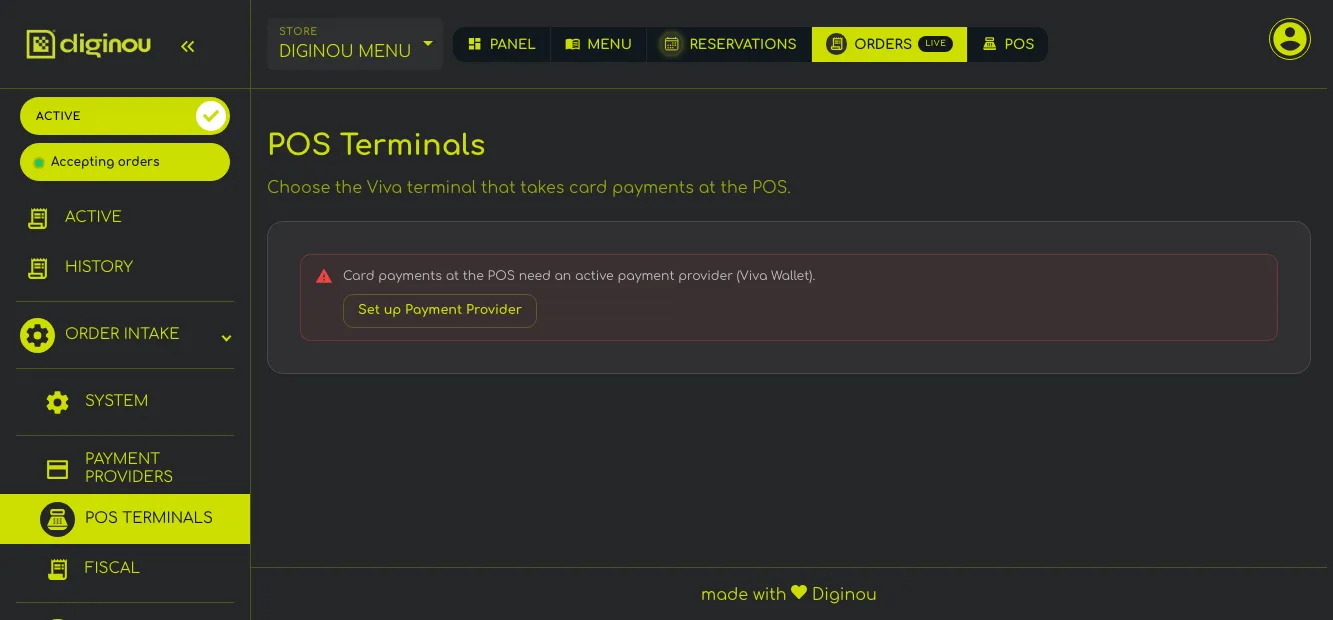
The “POS Terminals” page. Your Viva terminals show here once the payment provider is connected.
Install the viva.com Terminal app from Google Play or the App Store, or switch on your Viva device. Activation guide opens Viva's instructions for the app.
Sign in on it with the Viva account connected to Diginou. The page shows which email that is, next to Open Viva.
Press Open Viva, sign in with the same email and check under Sales → Physical Payments → Card Terminals that the terminal shows as active.
Press Refresh to load the Available Terminals.
Press the terminal you want. Only terminals active in Viva can be chosen. The rest are greyed out with Not active in Viva: it cannot take payments. Check its status in Viva.
In the POS, the CARD button unlocks. While it reads Connect a provider or Choose a terminal, one of the two is still missing.
If you see Viva did not answer. Click Refresh in a moment., wait a little and press Refresh.
The message may say the provider is missing or not active yet, or that Viva doesn't let Diginou see the terminals. Then the owner presses Set up Payment Provider and checks the connection in Payment Providers.
If the message says Diginou can't connect to Viva, your settings aren't the cause. Try again shortly. If it goes on, press Contact Us.
TIP
The choice applies only on the device where you made it. On each till computer or tablet, choose a terminal again, here or from the POS gear → POS Terminals.
WATCH OUT
The owner and managers can open POS Terminals. A POS cashier chooses a terminal from the POS settings. A terminal of another Viva account doesn't show here. If a terminal is removed or deactivated in Viva, the POS says so at payment time and asks you to choose another.




