MENU & PRODUCTS
Count each product's units per store, so that whatever runs out shows as sold out on the menu.
Stock counts product units for each store. Every sale takes from the stock, and whatever runs out shows as sold out on the menu. You record restocks, waste and shelf counts, and can see each product's history.
WHERE TO FIND IT
MENU → STOCK
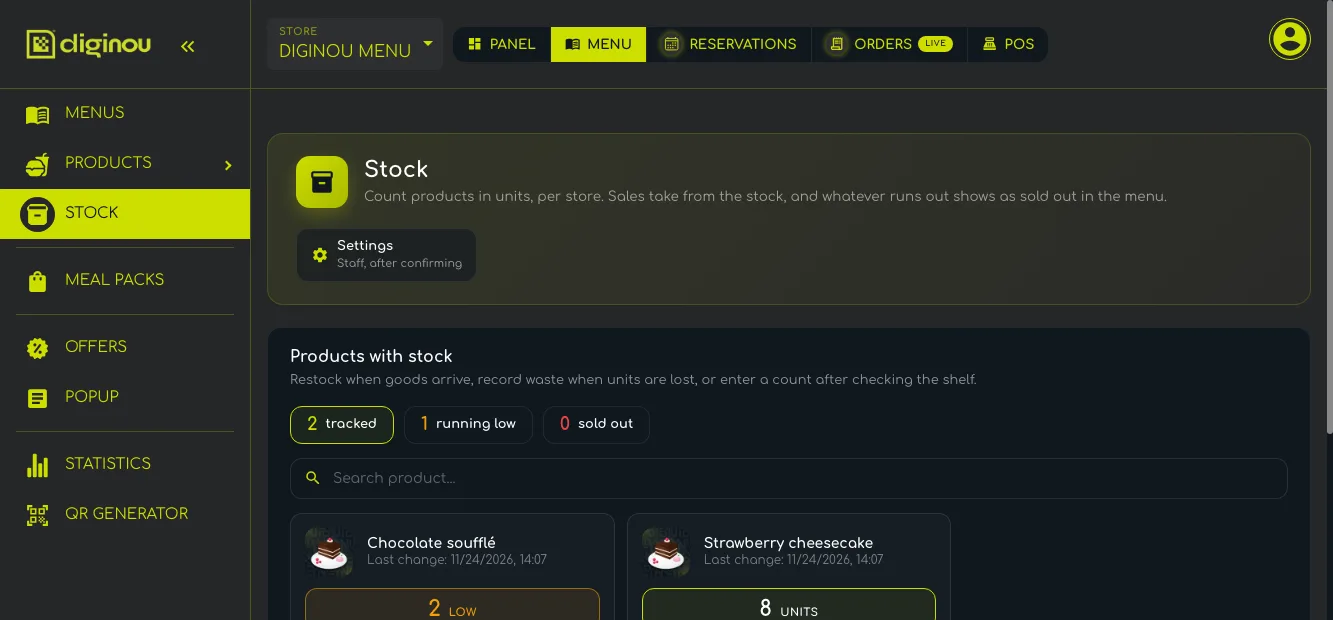
⤢ Enlarge
The “Stock” page: the settings at the top, the products with stock below.
Choose the store under STORE and go to MENU → STOCK.
Open Settings and turn on Use stock in this store.
Under Selling without stock, choose Never, Staff, after confirming or Always, and if you like set the Running low threshold. Settings are saved immediately.
For each product you want to count, open its Details, turn on Track stock in units and answer How many units are there now?
On the product's row, choose Restock, Waste or Count.
Answer the question (for example How many units arrived?), add a Note (optional) if you like, and click Save. History shows past movements.
TIP
Restock when goods arrive, record waste when units are lost, or enter a count after checking the shelf. The Running low threshold applies to all the store's products. When you cancel or refund an order that held units, the panel asks Put the units back in stock. It is ticked only for an order that hadn't been accepted yet; if you leave it unticked, the units are recorded as waste. In History these movements say Cancelled order.
WATCH OUT
Turning stock off stops counting, even for products already set up. With Always, everyone can sell and the stock goes below zero; with Staff, after confirming the POS and waiters can once they confirm, customers can't. STOCK opens for the owner and managers, not for the POS Cashier.




