MENU & PRODUCTS
Show customers a window with an announcement, offer or event as soon as they open the menu.
The popup is a window customers see when they open the menu. It has a type (Announcement, Offer, Event or Update), an image, and a title and description in each of the menu's languages. Each menu has one popup in each store, and the live preview shows how it will look.
WHERE TO FIND IT
MENU → POPUP
⤢ Enlarge
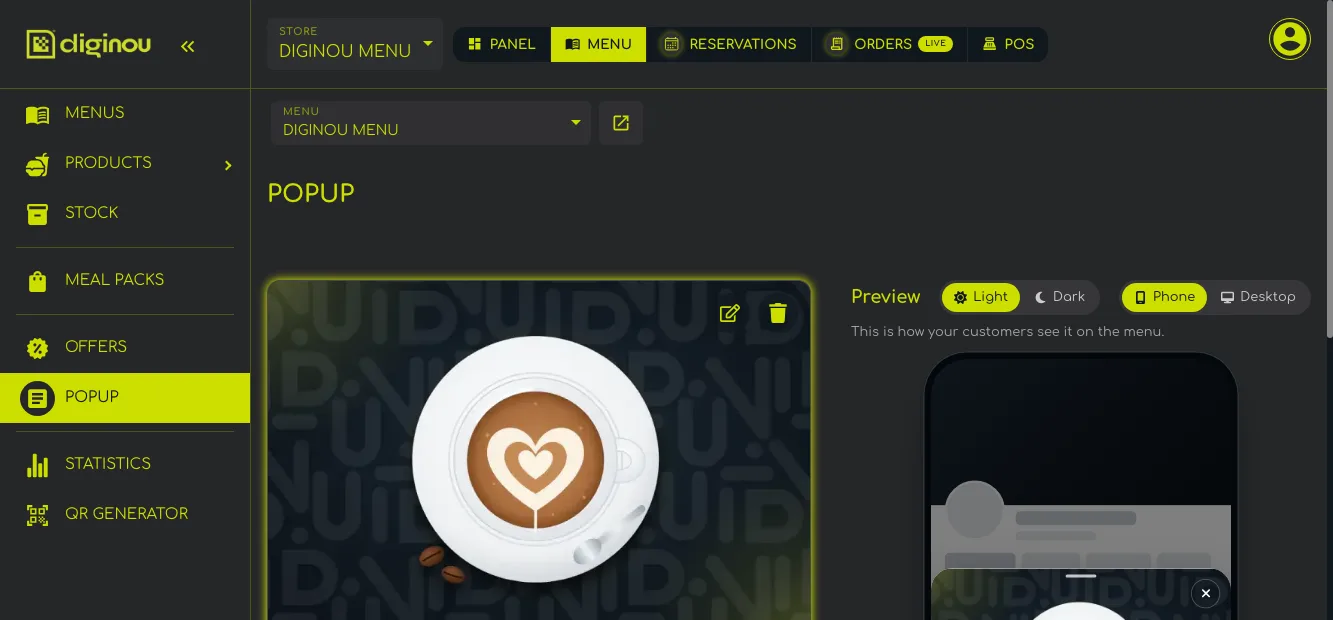
The “Popup” page: your announcement on the left, and a preview of what customers see on the right.
Choose the store under STORE and click the New popup card.
Choose Select menu and a Type: Announcement, Offer, Event or Update.
Add an Image and, in each language, a Title and Description.
Turn on Active and click Create.
The edit icon opens Edit popup. Save with Save.
With the delete icon, confirm with Delete.
TIP
In the preview, switch Device (Phone or Desktop) and App theme to see the popup the way customers do. With Active off, the popup stays saved but doesn't show.
WATCH OUT
Each menu has only one popup per store: if the store under STORE already has one, you'll see A popup already exists for this menu. On a menu shared by several stores, create the popup in each store separately. A title and description are needed in every language of the menu. Deleting is permanent.




