SAVE A MEAL
Create a Meal Pack in a few steps: type, contents, price, days and quantity. See it as customers will.
New Meal Pack takes you step by step: Category, Products, Price, Availability and Summary. You choose a menu and a type (Surprise, Mystery or Fixed), its products, the original value and the price. You set the days and how many packs you put out each day. The pickup time and the ways customers get the packs aren't set here: they're the same for every pack and you change them on the Meal Packs page.
WHERE TO FIND IT
MENU → MEAL PACKS
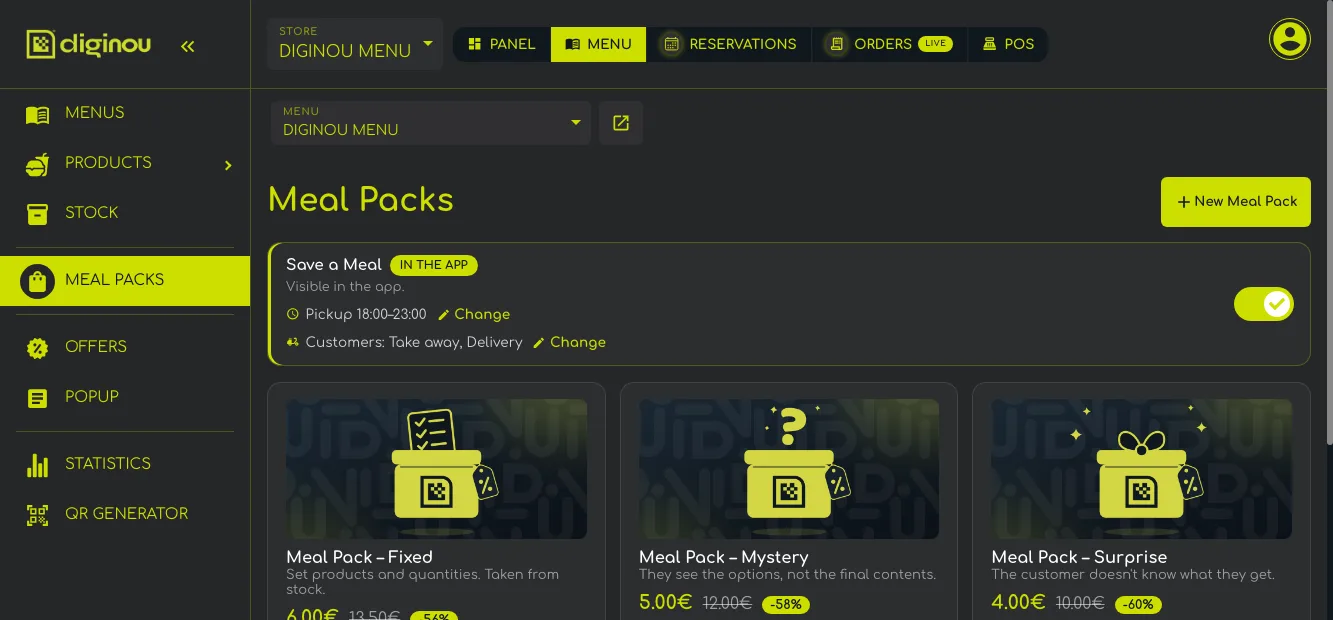
⤢ Enlarge
Meal Packs: Save a Meal with its pickup time and ways on top, the packs below.
Choose the menu in the MENU bar and press New Meal Pack. In Category, check the Menu. Choose Meal Pack – Surprise, Meal Pack – Mystery or Meal Pack – Fixed and press Next.
In Products (Mystery and Fixed only), tap the products you want and tap one again to take it out. For Fixed, set with − and + how many of each go in. Surprise skips this step.
In Price, enter the Original value and the Price. For Fixed, Use it fills in the contents at full price as the original value.
In Availability, choose the Days, Packs per day (0 to 999) and Most per order (1 to 50). Fill in Sales close this many minutes before the window ends too (0 to 240). Press Next.
Check the card in How customers will see it. With Change picture you pick or upload your own photo. Use the standard one brings back the category's picture.
Leave On sale on and press Create.
On the pack's card press Edit (the pencil). In Edit Meal Pack, press any step, change what you need and press Save.
To take the pack off sale without deleting it, turn On sale off. To delete it, press Delete (the bin) and confirm at Delete this Meal Pack?.
TIP
Customers see the category, not a name you write. Packs per day is the quantity each day starts with; you change today's from the list, with − and +. If the store has several menus, the pack shows only on the menu you created it on.
WATCH OUT
The Price can't be higher than the Original value. A pack's menu can't change once it's created, and Products lists only the menu's active, visible products. Every Meal Pack counts towards the products of your plan. Deleting a pack doesn't affect orders already placed.




