ORDER INTAKE
Block a customer from one of their orders, and find or unblock the people you've blocked.
A blocked customer can't place new orders or make bookings from the app at that store until you remove the block. You block someone from one of their orders. BLOCKED USERS lists the people you've blocked at the store selected under STORE.
WHERE TO FIND IT
ORDERS → ORDER INTAKE → BLOCKED USERS
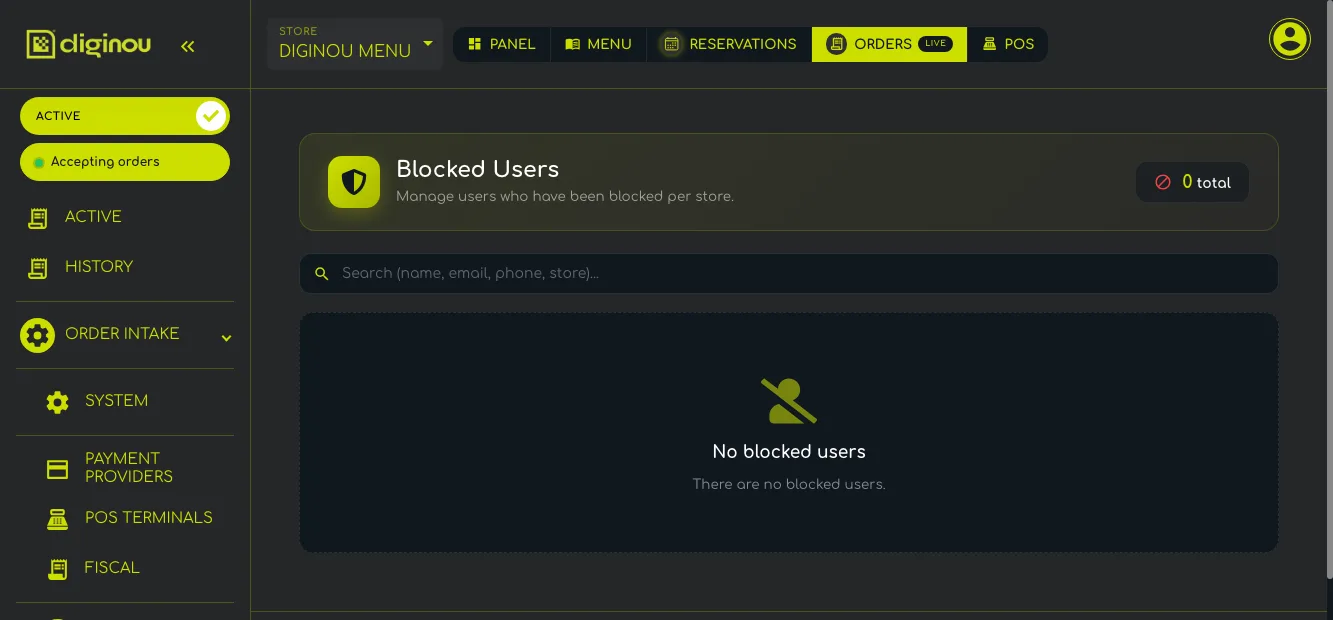
⤢ Enlarge
“Blocked Users”, with search and a store filter.
Open one of the customer's orders and, under Customer, press the Block this user from this store icon.
If you like, type a Reason for blocking (optional).
Press Block. Their orders now show Blocked customer for this store, with the reason.
Under STORE in the header, choose the store and open BLOCKED USERS.
Search by name, email or phone. Each card shows the contact details, the date, who blocked them and the reason.
On the customer's card, press Unblock, and in Unblock user press Unblock again.
Or, on one of their orders, press the green padlock Remove block for this store under Customer, then Unblock. The customer can order at that store again.
TIP
Give a reason when you block someone: it shows on the card and on their orders, and helps the rest of the staff understand why. A block doesn't touch orders that have already come in: you complete or cancel them like any other.
WATCH OUT
A block applies only to the store of that order. The block icon only appears on orders the customer placed themselves. The page has no store filter of its own: for another store, change STORE. The page opens for the owner and managers. The POS Cashier blocks and unblocks from the order only.




