RESERVATIONS
Choose what customers can book, how bookings are confirmed, and which dates you're closed.
In Reservation settings you set what customers book (kinds of booking, such as tables or sunbeds, with their places and hours), whether you take bookings in the App, how they're confirmed, pre-orders, and which days or hours you're closed. While reservations are off, customers can't book in the App, but you can still take bookings in the panel.
WHERE TO FIND IT
RESERVATIONS → SETTINGS
⤢ Enlarge
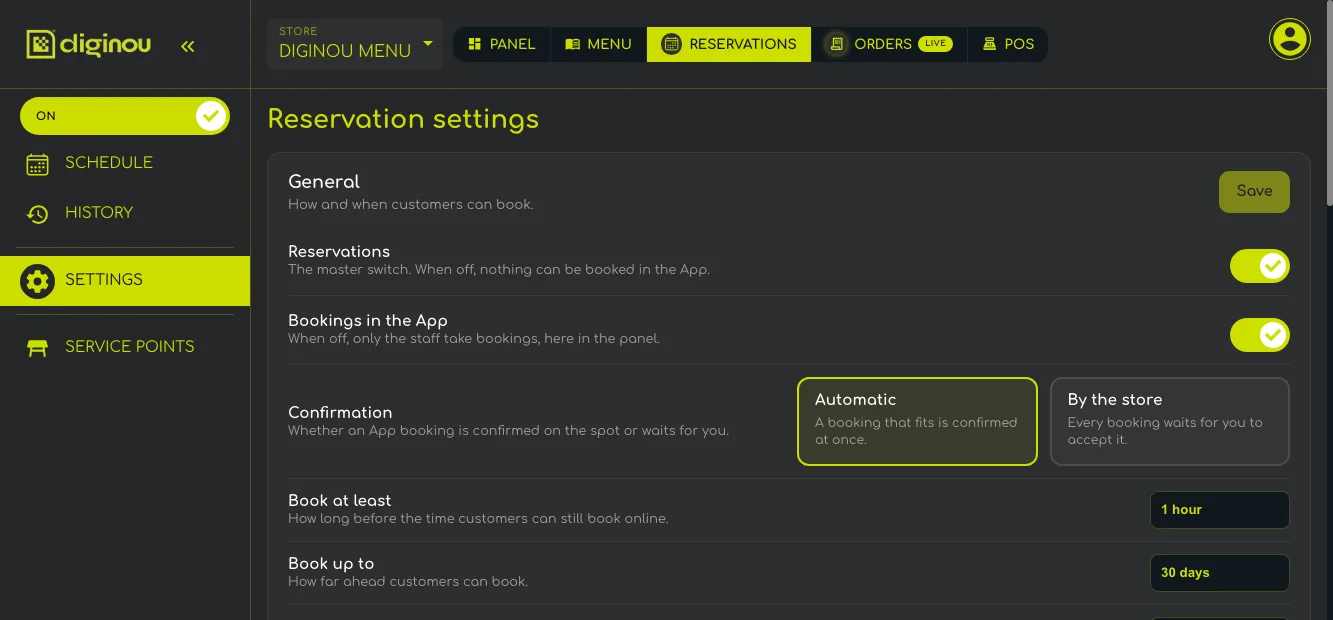
“Reservation settings”: bookings in the App, confirmation and timing.
If the store has no active service points yet, press Create places, or open SERVICE POINTS in the side menu.
Under Kinds of booking, press New kind. The first time, you can start from a ready-made template: By arrival time or By part of the day.
Fill in the steps Basics, Places, Hours, Rules and Charge, and press Create.
Under General, switch on Reservations and, if customers should book by themselves, Bookings in the App.
Under Confirmation, choose Automatic or By the store.
Set Book at least, Book up to, Free cancellation until and Confirmation email, then press Save.
Under Closed dates, set the dates, choose Whole day or Between hours, the kind of booking and, if you like, a Note (staff only).
Press Add. Remove deletes it.
TIP
You can also switch reservations on or off with the ON / OFF switch in the side menu. With Automatic confirmation, a booking that fits is confirmed at once. With By the store, every booking waits for you to accept it. Confirmation email sends an email when a booking is made, confirmed or cancelled. For a booking made in the App, it goes to the confirmed email of the guest's account. Customers only see that a closed time isn't available, not your note.
WATCH OUT
You need active service points and a kind of booking first, or reservations won't turn on (Nothing to book yet). If you delete a kind, its bookings stay as they are, but no new ones can be made. Pre-orders and booking charges need online card payments through Viva. Only the owner sees the Payment settings button, because only the owner connects the payment provider. Settings, SERVICE POINTS and the switch open for the owner and managers, not for the POS Cashier.




