SAVE A MEAL
Change today's quantity, stop a pack for today, and get orders ready before the pickup time.
Each day, every pack starts with its Packs per day. From the list you only change today's quantity or stop it for today. The next day everything starts again from its settings. Meal Pack orders arrive already confirmed to the customer and wait under Scheduled, by pickup time, with what you need to prepare. Shortly before the pickup time they move to preparing on their own.
WHERE TO FIND IT
MENU → MEAL PACKS · ORDERS → ACTIVE → Scheduled
⤢ Enlarge
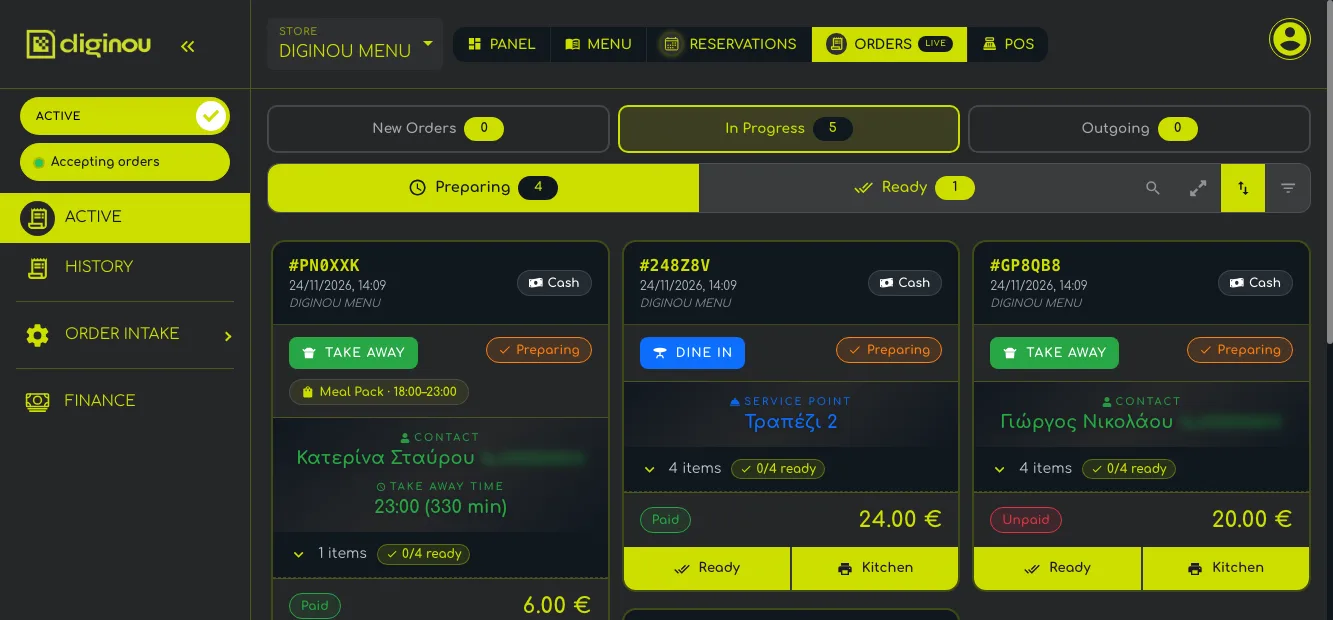
Orders “In Progress”. A Meal Pack shows its pickup window.
In MENU → MEAL PACKS, on the pack's card, press − or + next to Today. Sold shows how many have gone out of the ones you put out.
To stop a pack for today only, press the pause button, Pause for today only. The same button, Resume today, puts it back on sale.
To hide all packs at once, from the app and from the POS, turn off the switch next to Save a Meal.
In ORDERS → ACTIVE, under New Orders, press Scheduled. Each pickup time shows how many orders it has and when preparation starts. Below that it shows what to prepare: Meal Packs, Pack contents, Other products.
At the time it shows, the orders move to preparing on their own, with one alert. To start earlier, press Start now.
To change how early they start, go to ORDERS → ORDER INTAKE → SYSTEM. Under Accepting orders, enter minutes in Start scheduled orders (minutes before their window) and press Save. If you leave it empty, they start 30 minutes before.
In the POS, choose MEAL PACKS and press a pack. Each press adds one more, up to its Most per order.
If the pickup time hasn't started yet, the order goes to Scheduled. During the pickup time it is prepared straight away.
TIP
With 0 in Packs per day, the pack starts every day sold out. You put it on sale with + only on days when food is left over. If an order is cancelled, the pack goes back to the packs of its own day.
WATCH OUT
− never goes below what has been sold, and the quantity and the pause apply to today only. Meal Pack orders need no accepting and don't ring as new orders. In the POS, a pack that is paused, sold out or closed for sales is greyed out and can't be pressed. SYSTEM is open only to the owner and managers.




