ORDERS
See whether the panel is connected, what happens when it loses the connection, and which store rings.
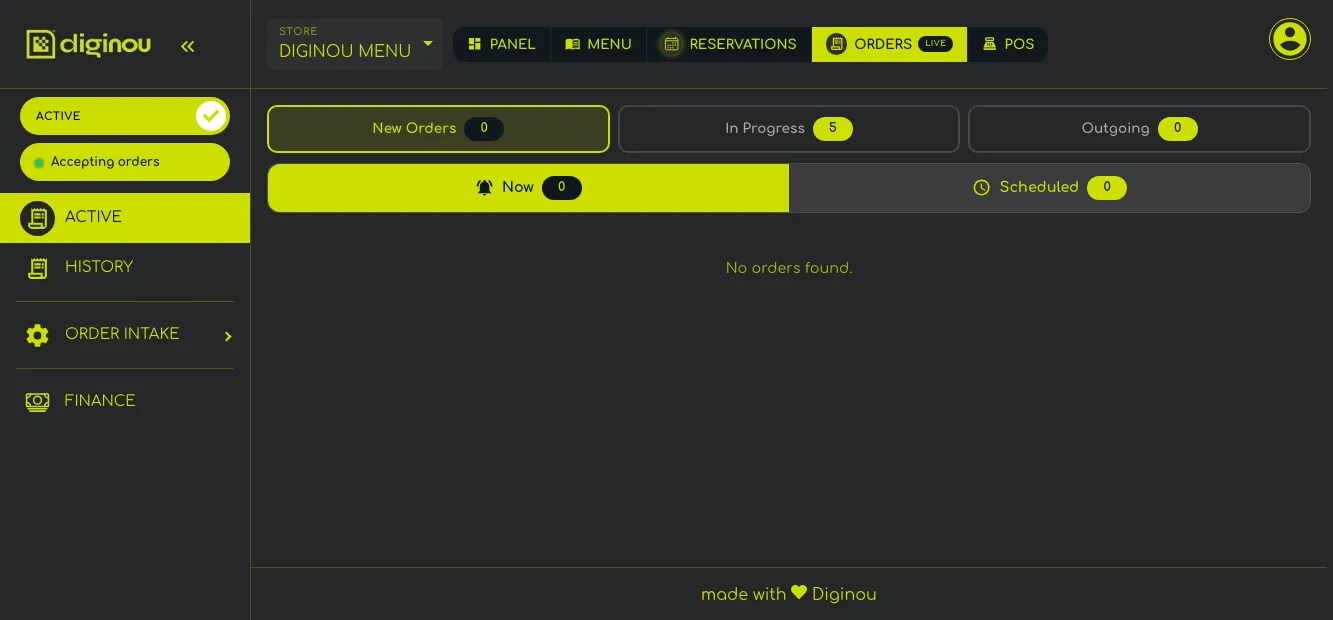
The panel hears about new orders through a live connection to the server. While online orders are on, the ORDERS tab in the top bar shows how that connection is doing: Live, Connecting, Reconnecting or Offline. On phones and tablets, a dot on the icon takes the place of the word: green, amber or red. The number next to it counts the orders waiting for an answer.
WHERE TO FIND IT
Top bar → ORDERS
⤢ Enlarge
The “Orders” tab with LIVE. On the left, the “Active” switch and the status of online orders.
Live: the connection is open. Every new order arrives at once, with a sound and the notification New order received!.
Connecting or Reconnecting, blinking: the connection dropped and the panel tries again at once, after 2, 5 and 10 seconds, then every 30 seconds for as long as it is open.
Offline: reconnecting has taken more than 15 seconds. Check the device's internet. Meanwhile the panel asks the server for new orders every 30 seconds.
The panel compares the active orders with what it knew. Whatever came in meanwhile it shows, rings for and prints, as if it had just arrived.
It does the same when you come back to the browser tab, or to the panel from another app on your phone.
If the list cannot be refreshed, ACTIVE says so in a message above the orders. Press Try again.
Only the store selected under STORE rings. When you switch, the previous store's sound stops.
As soon as you open a store, or reload the page, the panel rings for whatever waits there: new orders with no answer, and auto-accepted ones nobody marked Got it.
The sound plays every 3 seconds, for up to a minute, until you answer.
TIP
Browsers don't play sound on a page you haven't touched. After you open or reload the panel, click once anywhere on the page. To hear about new orders with the panel closed, turn on Push Notifications in your Profile.
WATCH OUT
Auto-accept runs on the server, so it carries on while the panel is closed or offline: the customer gets a confirmation before you see the order. If your store often loses its connection, choose Never — I answer every order myself under SYSTEM. The status only shows while online orders are on, but the connection stays and still brings in waiter calls. Orders you ring up in the POS don't ring. Active opens for the owner, managers and the POS Cashier.




