ORDER INTAKE
Show accepted orders in the kitchen, so staff can tick each item as soon as it's ready.
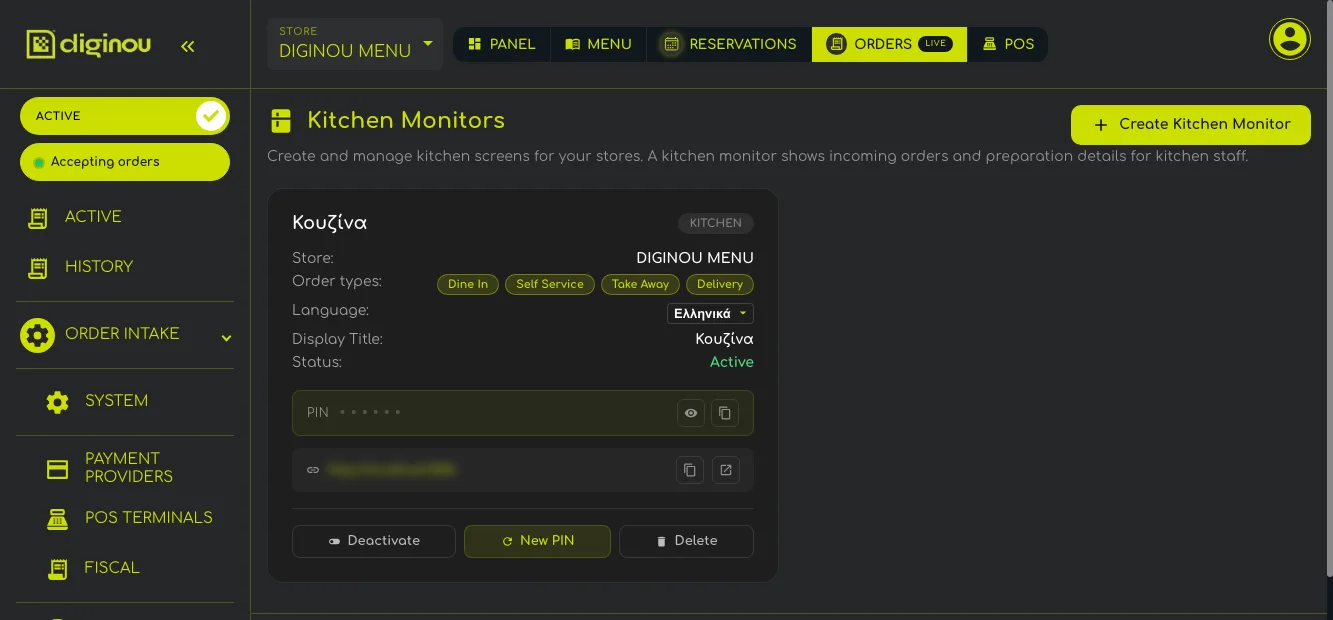
A kitchen monitor shows staff the orders in Preparing, that is, the ones that have been accepted. The kitchen ticks each item once it's ready and, at the end, marks the order ready. In the panel's active orders the ticks show as "2/3 ready", and the order becomes Ready. Each monitor prepares the order types you choose: Dine In, Self Service, Take Away, Delivery. Orders of the POS type, that is sales at the till, never reach the kitchen. PIN, language, activation and deletion work as on self service monitors.
WHERE TO FIND IT
ORDERS → ORDER INTAKE → MONITORS → KITCHEN MONITORS
⤢ Enlarge
A kitchen monitor with its PIN, its last connection and the buttons for a new PIN or to deactivate it.
Under STORE in the header, choose the store and press Create Kitchen Monitor. Under Select Store the store is already locked: press Next.
Under Order Types, tick the types this screen prepares. Set the Monitor Language and, if you like, the Monitor Name and Display Title, then press Next.
Check the Summary, press Create Kitchen Monitor and keep the Access PIN.
On the kitchen screen, open https://kitchen-monitor.diginou.com and type the PIN.
On the monitor's card, under Order types:, press a type to switch it on or off. The change saves at once.
Language, Deactivate, New PIN and Delete work as on self service monitors.
TIP
With more than one type, the screen gets a filter to switch between them. If you have several screens, use names such as "Grill", "Cold Kitchen" or "Bar". The screen keeps the orders it has finished for 2 hours, on a separate tab.
WATCH OUT
Every kitchen monitor needs at least one order type. With New PIN, the screen signs out within a minute and asks for the new PIN. The page lists only the monitors of the store under STORE: for another store, change it there. The page opens for the owner and managers, not for the POS Cashier.




