ORDER INTAKE
Set the paper and language, which device prints automatically, and what tickets and receipts show.
Printer Options control how tickets and receipts print. Printing always goes to the device's default printer. Here you set the paper and margins, which device prints automatically, whether receipts are issued automatically, and the header and footer text.
WHERE TO FIND IT
ORDERS → ORDER INTAKE → PRINTER (also POS → gear → Printer Options)
⤢ Enlarge
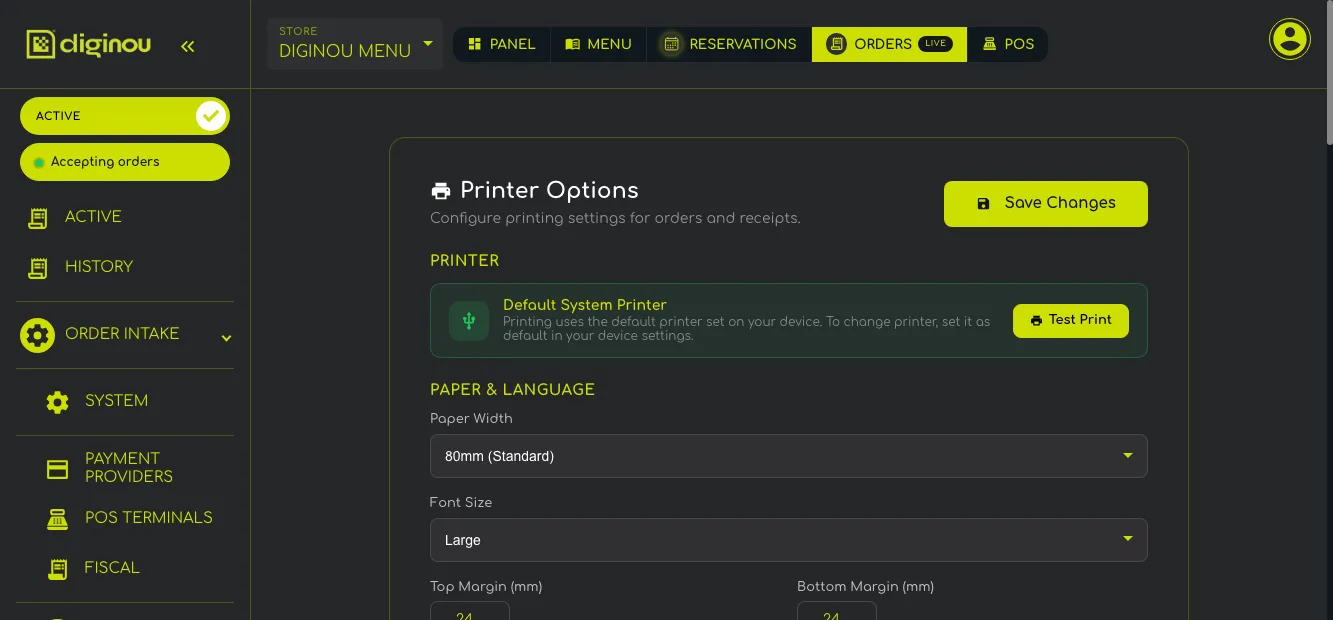
“Printer Options”: the system printer, then the paper and the font size.
Under Paper & Language, choose a Paper Width: 80mm (Standard) or 58mm (Compact).
Set the Font Size, Top Margin (mm), Bottom Margin (mm) and Print Language.
Press Test Print to check the result.
In Print Station Mode, choose Main Station (MAIN) to print customer online orders and this station's POS orders automatically, Own POS Station (OWN ONLY) for only this station's POS orders, or Off (OFF).
Under Auto Print, switch on what you need, such as Auto Print on New Order, Auto Print Delivery Slip or Auto Issue Receipt on Complete.
With Auto Issue Receipt when it leaves for delivery, a Delivery order's receipt is issued and printed as soon as you press Delivering, so it goes in the bag.
If you like, fill in Header Text and Footer Text, then press Save Changes.
TIP
Printing uses the default printer set on your device. To change printer, set it as the default in your device settings. On a new device, the station mode starts as MAIN for the owner and managers, and as OWN ONLY for the POS Cashier. Every device on MAIN prints online orders by itself, so keep MAIN on one device per store, or every ticket prints twice.
WATCH OUT
Nothing applies until you press Save Changes. Margins and Print Station Mode are saved on this device only, while everything else applies to the whole store. The automatic receipt switches turn on only when the store has an active fiscal mechanism; otherwise the page says so, and a switch that is already on can only be turned off. The automatic receipt is issued by the device where you press Complete or Delivering. PRINTER opens for everyone; the POS Cashier sees only Print Station Mode.




