MENU & PRODUCTS
Create categories, such as Salads or Drinks, so customers easily find what they want.
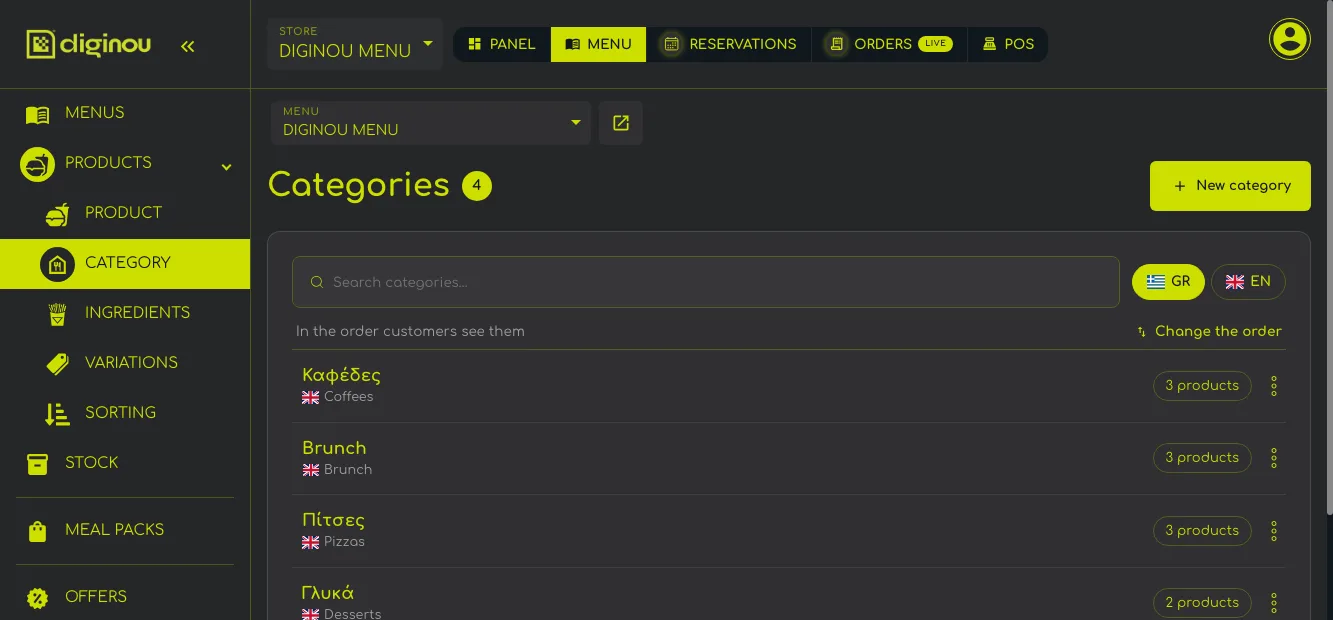
Categories split the menu into sections, for example Coffees, Salads, Desserts, and each product goes in one. The page shows the categories of the menu you've selected, in the order customers see them, and how many products each one has. Every category needs a name in each of the menu's languages and can be copied to another menu.
WHERE TO FIND IT
MENU → PRODUCTS → CATEGORY
⤢ Enlarge
“Categories” in the order customers see them. “New category” is at the top right, and the three dots open the options.
Choose the menu in the MENU bar and click New category.
In the New category window, type the name in each of the menu's languages. The default language comes first and says (default).
Click Add. The window stays open for the next one and says, for example, Added: Salads. Type the next one or press “Done”.
When you've finished, click Done. The new categories are in the list.
Click the category's row, or the ⋮ and Edit. In Edit category, change the names and click Save.
With ⋮ → Copy to another menu, pick a menu under Select destination menu and click Copy category.
With ⋮ → Delete, confirm Delete “Salads”? with Delete.
TIP
Click a category's product count (for example 8 products), or ⋮ → See its products, to open its products. Where a name is missing, the row says, for example, Missing: English. The language buttons above the list (for example GR, EN) show the names in another language, and Change the order opens Sorting.
WATCH OUT
A category with products can't be deleted: you see The category has products, and See the products takes you to them so you can move them to another category. Deleting can't be undone. A category without a name in one of the menu's languages isn't saved (for example The name is missing in English). Copying brings only the name, not the products, and needs the other menu to have all of this menu's languages, otherwise you see Language mismatch.




