GETTING STARTED
Show only the tabs a device needs, for example just Orders and POS at the till.
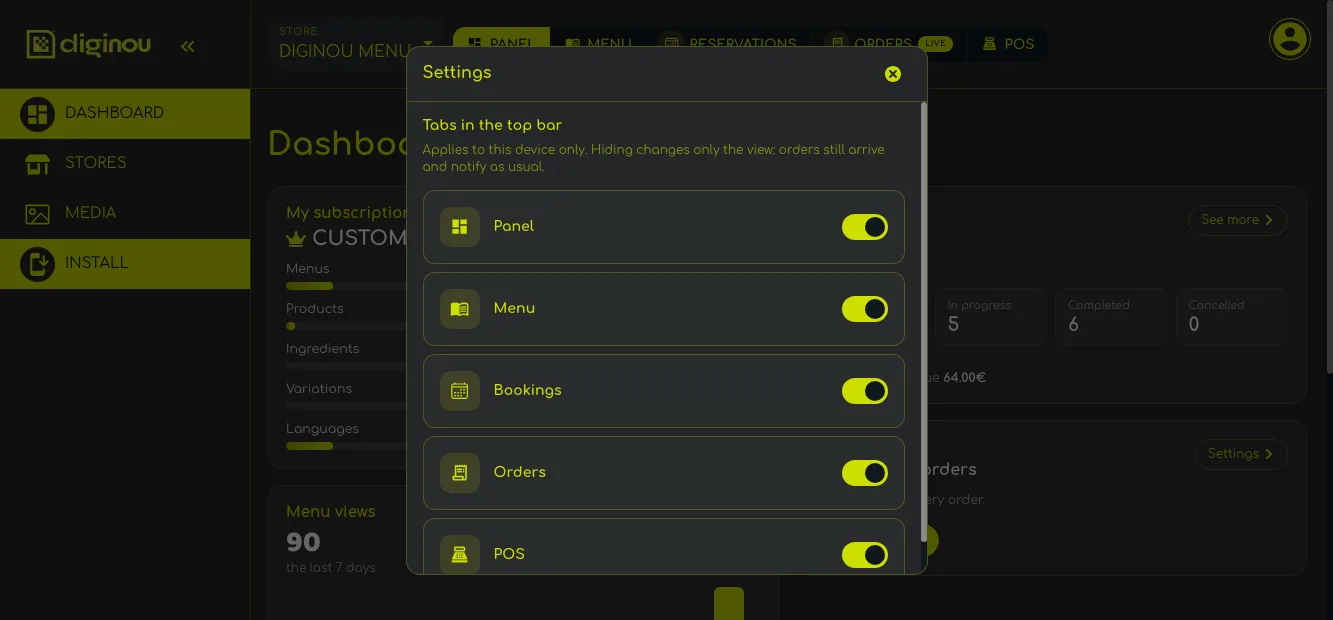
From Settings in the account menu, you choose which tabs show in the top bar of this device. The choice stays on the device, for whoever signs in on it, even after a logout. It hides only the tab's button: orders still arrive and notify as usual.
WHERE TO FIND IT
Account menu → Settings → Tabs in the top bar
⤢ Enlarge
“Settings” from the account menu: one switch for each tab of the top bar, on this device only.
Click your photo at the top right, then Settings.
Under Tabs in the top bar, turn off each tab this device doesn't need: Panel, Menu, Bookings, Orders or POS.
The change applies at once, with nothing to save. If you hide the tab you're in, you go to the first tab still shown.
Open Settings again from the account menu.
Turn on the switch of the tab you want back.
TIP
For a till, keep only Orders and POS. If a link or a notification opens a page of a hidden tab, that tab shows while you're there.
WATCH OUT
One tab always stays visible: the last switch locks with At least one tab must stay visible. With Panel hidden, the Dashboard doesn't open, the home page becomes the first tab shown, and INSTALL isn't there. The setting doesn't lock pages: whatever a role can open still opens from a link. Every role has Settings; a POS cashier has no Panel tab anyway, and if all of their own tabs end up hidden, they see them all.




