ORDERS
See your revenue, average order and top products, for today or for a period.
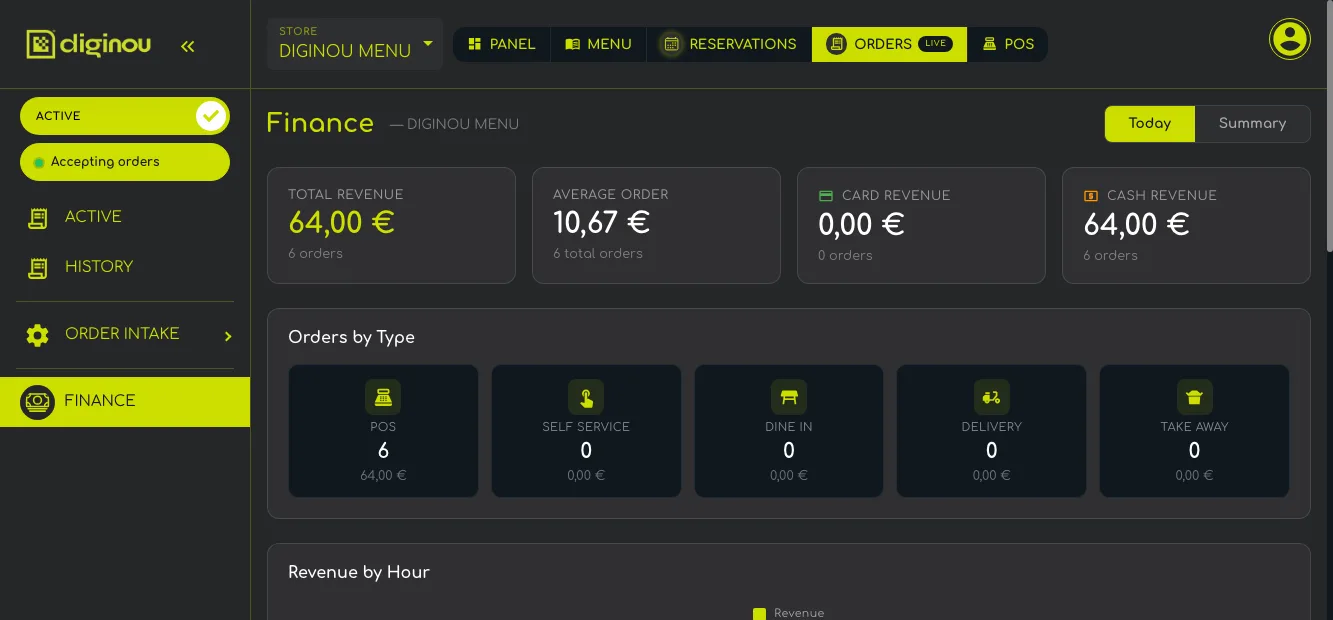
Finance shows the sales of the store you have selected: total revenue, card and cash, average order, orders by type, charts by hour or day, and the top 10 products and service points. Only completed orders count, on the day they were placed.
WHERE TO FIND IT
ORDERS → FINANCE
⤢ Enlarge
Today’s “Finance”: revenue, average order, card, cash and orders by type.
Choose the store under STORE.
In the Today tab, read Total Revenue, Average Order, Card Revenue, Cash Revenue and Revenue by Hour.
Open Summary and press Last Week, Last Month or Last 3 Months.
Or set two dates under Date Range and press Apply.
Read Revenue by Day, Orders by Type, Top Selling Products and Top Service Points.
TIP
The quick options cover the last 7, 30 or 90 days. Compare Top Selling Products with your menu statistics to see what customers look at and what they actually buy. A product you deleted shows as "Not available".
WATCH OUT
Only the owner can open Finance. Managers and the POS Cashier don't see FINANCE in the menu, and a direct link shows them Permission denied. Cancelled, refunded and open orders don't count. Charts don't appear while there is no revenue.




