ACCOUNT & SUBSCRIPTION
Keep your company details right for invoices, and download the invoices for your payments.
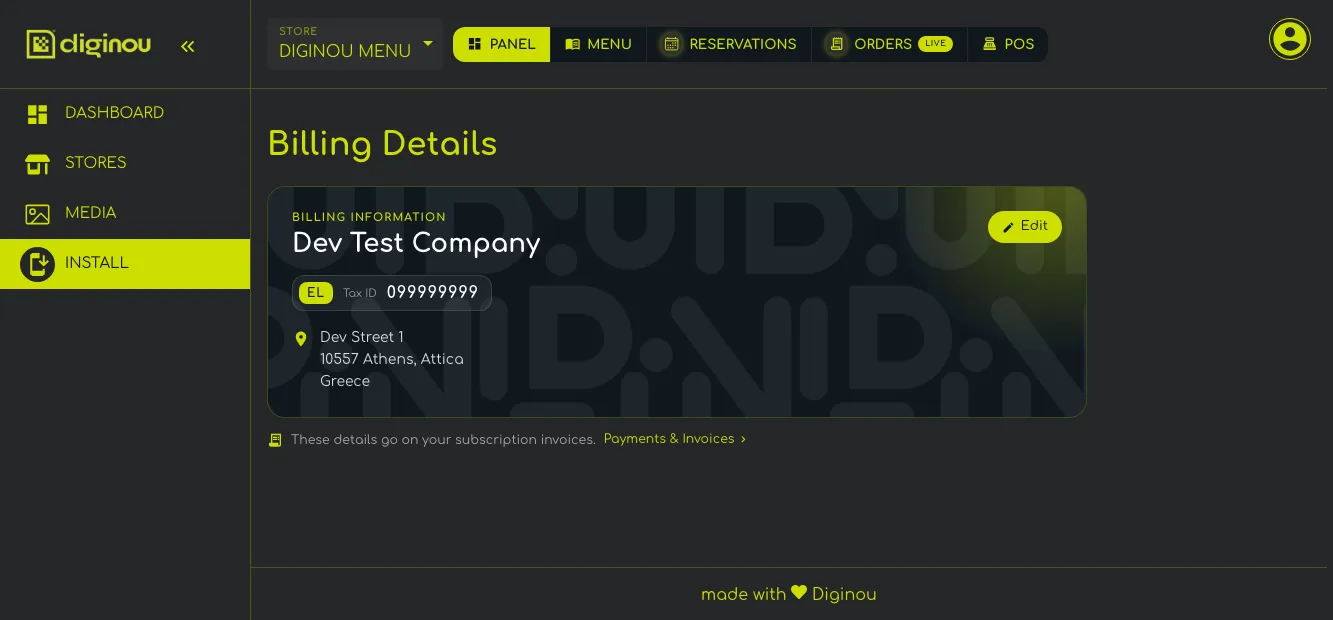
In Billing Details you set your company details, which go on your subscription invoices. In Payments & Invoices you see how much you've paid this year, your last payment and your payment history by year, and download each invoice as a PDF.
WHERE TO FIND IT
Account photo (top right) → Billing Details / Payments & Invoices
⤢ Enlarge
“Billing Details”. “Payments & Invoices” below opens your invoices.
Open Billing Details and press Add details, or Edit if they already exist.
Choose the Country, enter the Tax ID and press Check Tax ID. If it is valid, you see Tax ID is valid. and the company details the check returns are filled in.
Check or fill in Company Name, Address, City, Region / State and Postal Code, then press Save, or Save Changes when editing.
Open Payments & Invoices. In Payment history, payments are grouped by year.
Press Invoice to download the PDF. If it reads Pending Invoice, the invoice isn't ready yet.
TIP
These details go on your subscription invoices, so check them before your first upgrade. If they are missing when you go to upgrade, Upgrade asks for them first.
WATCH OUT
A tax ID already registered to another account isn't accepted: you see Registration not completed, with Contact Us if you think it's a mistake. After many checks from the same network within a minute, you see Too many VAT number checks with the time to try again. A manager can see the billing details but can't change them, and only the owner can open Payments & Invoices. The POS Cashier opens neither.




