MENU & PRODUCTS
Build your store's digital menu with the New menu wizard, then set its stores, languages and status.
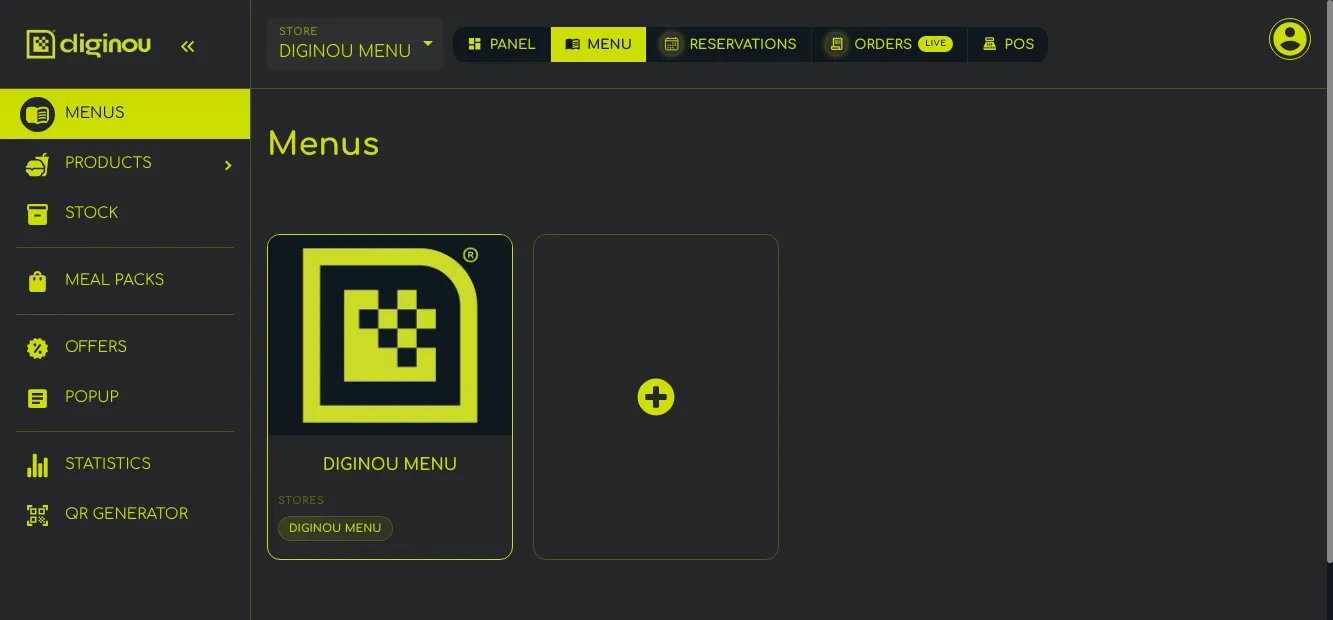
The menu is what customers see when they scan the QR code or open your store in the app. Each menu is served by one or more stores, has a title in each of its languages and is Active or Inactive. The Menus list shows only the menus of the store you've selected under STORE. How many menus and languages you can have depends on your subscription.
Click MENU at the top and, in the list, the card with the +. New menu opens.
In Basics, type a Menu name (only you see it), choose the Stores and, if you like, the Type of menu. Click Next.
In Language & title, choose the language and type the Title customers see at the top of the menu. The Description is optional.
In More languages, click Add a language for each extra language and give it a title, or click Skip. In Images, add a Cover image and Logo if you like, then click Create menu.
Click the menu's card. On its page, click the gear at the top right and choose Edit Menu.
In the Store menus tab, choose under Select stores where the menu is served and click Save changes.
In Menu details, change the Name, Default language or Menu status (Active or Inactive) if you need to, and click Save changes.
In Menu translations, click the + for a new language, type the Title and, if you like, a Description, and click Save changes.
TIP
After Create menu, What's next takes you to Create categories, Add a product or Import from Excel. On the menu's page you change the cover and logo by clicking them, and Go to products opens its products. The gear also has Visit Menu, to see it as a customer does, Create Menu Link, Generate QR Code and Print Menu.
WATCH OUT
The menu's title is needed in every one of its languages, inactive ones too, or it isn't saved (for example The title is missing in English). An Inactive menu doesn't open for customers: they see the store's active menus instead. Delete Menu also deletes its categories, products, ingredients and variations, can't be undone, and isn't possible while one of its products is in an order in progress. Managers and the POS Cashier see only the menus of the stores you've given them.