RESERVATIONS
See the day's bookings, add new ones, answer pending ones and seat walk-in guests.
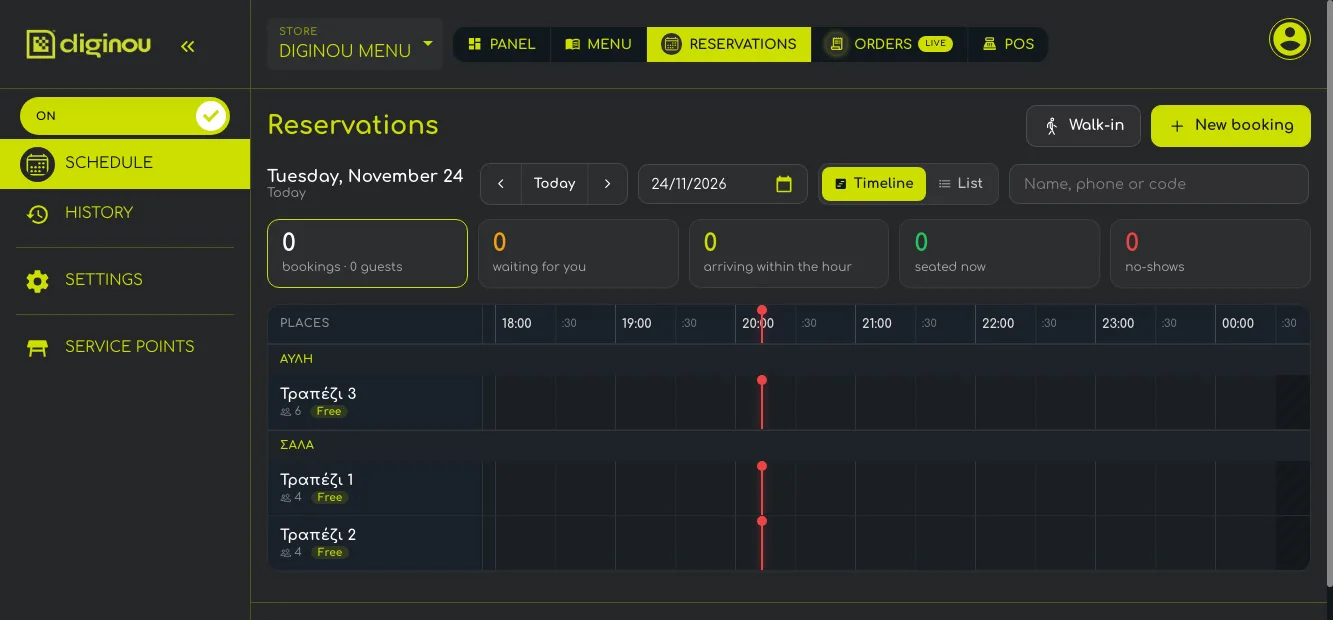
The Schedule shows the day's bookings as a Timeline or a List, and updates by itself when someone books in the App or on another device. You change the day with Today, the arrows or the calendar, search by name, phone or code, and press the counters at the top to filter. If you have more than one kind of booking, you pick All or one kind underneath. Next to SCHEDULE you see how many bookings are waiting for an answer.
WHERE TO FIND IT
RESERVATIONS → SCHEDULE
⤢ Enlarge
The day’s reservation “Schedule”, with the “Walk-in” and “New booking” buttons.
Press New booking, or an empty slot on the timeline.
In When, set Guests, Duration, Date and Time, and press Next.
In Place, keep Best fit or choose from Show every place. In Guest, enter a Name and, if you like, Phone, Email, Guest's note and Staff notes.
Check the Summary and press Book.
Press a booking to open its details. For a booking made in the App, At this store shows how many times the guest came, didn't show up and cancelled.
For a waiting booking, press Accept or Decline. For a confirmed one, press Arrived, No-show or Cancel booking.
When the guests leave, press Finish. If you pressed something by mistake, Back to confirmed or They came after all puts it right.
Press Walk-in.
Set the Expected stay (30–180 minutes), Name (optional) and Where are they sitting?.
Press Seat them.
TIP
To change a booking that is waiting, confirmed or seated, press Edit. With Confirmation email switched on in Settings, the guest gets an email about the booking. For a booking made in the App, it goes only to the confirmed email of the guest's account. For a booking you enter yourself, it goes to the Email you type. Walk-in guests get no email. A guest who booked in the App is also told on their phone when you accept, decline, cancel or move the booking.
WATCH OUT
When you decline or cancel, the guest is told and you can add a message. If they paid, the money is refunded. For a paid booking where the guests didn't show, you choose whether to keep or refund the payment. If the place or time clashes with another booking, you see a warning and can go ahead with Book anyway, or Seat them anyway for walk-ins. The Schedule opens for the owner, managers and the POS Cashier. The cashier doesn't see the reservations switch or Settings.




