MENU & PRODUCTS
Drag and drop to set which category and which product appears first on your menu.
Sorting sets the order in which categories, and the products inside each category, appear on the menu you've selected. Every category of the menu is there, including ones with no products yet. Changes are saved as soon as you drop an item in its new place; there is no Save button.
WHERE TO FIND IT
MENU → PRODUCTS → SORTING
⤢ Enlarge
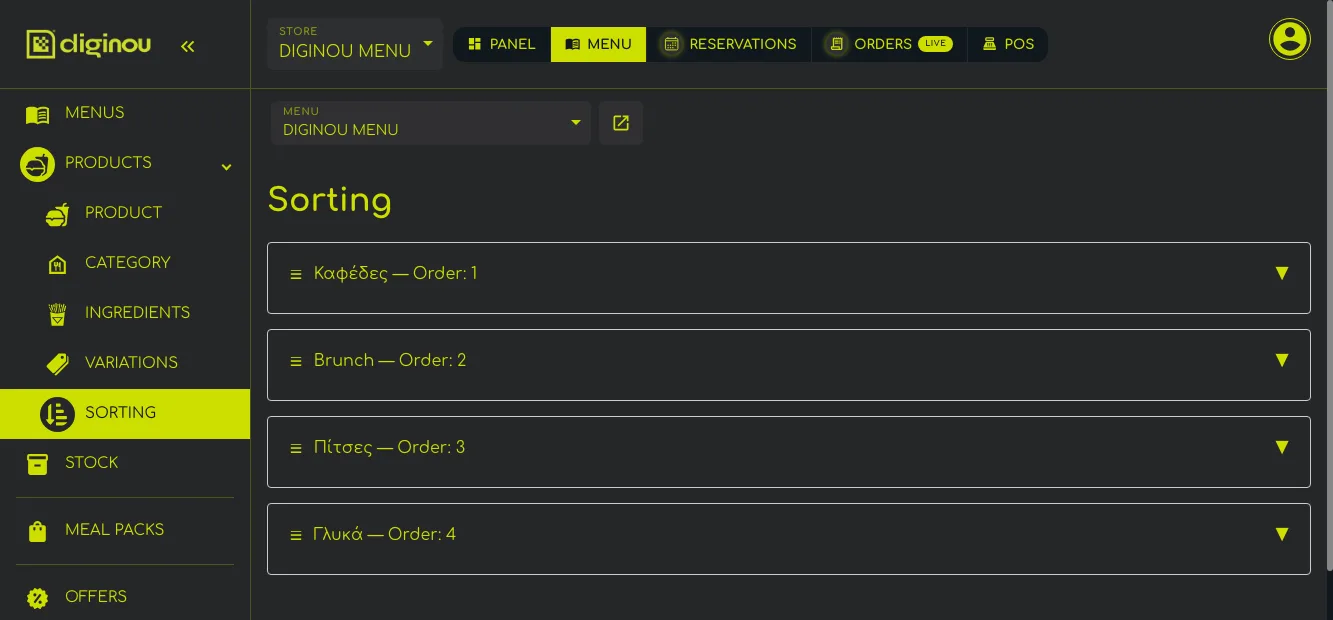
“Sorting”, with the categories in the order the menu shows them.
Choose the menu in the MENU bar. The categories appear collapsed, each with its Order.
To reorder the categories, drag a category by the grip on its left and drop it in its new place.
For products, click a category's name to expand it and drag the product cards where you want them.
TIP
Names are shown in the menu's default language. The order applies to the menu in the bar, in every store that serves it. A new product, or one moved to another category, goes last in its category. In CATEGORY, Change the order brings you here.
WATCH OUT
Products without a category are left out of sorting, and the panel flags them with a red notice. Put them in a category first, then sort them. If you see The order was not saved, the list went back to the order the menu has: drag the item again.




