ORDER INTAKE
Show self-service order numbers and their status on a screen in your store.
A self service monitor shows customers, in real time, which self-service orders are being prepared and which are ready. It also shows a QR code that opens the menu you choose, for a Self Service order. Each monitor belongs to the store selected under STORE, and the page lists only that store's monitors. Each monitor has a 6-digit PIN: you open the monitor's address on the TV and type the PIN.
WHERE TO FIND IT
ORDERS → ORDER INTAKE → MONITORS → SELF SERVICE MONITORS
⤢ Enlarge
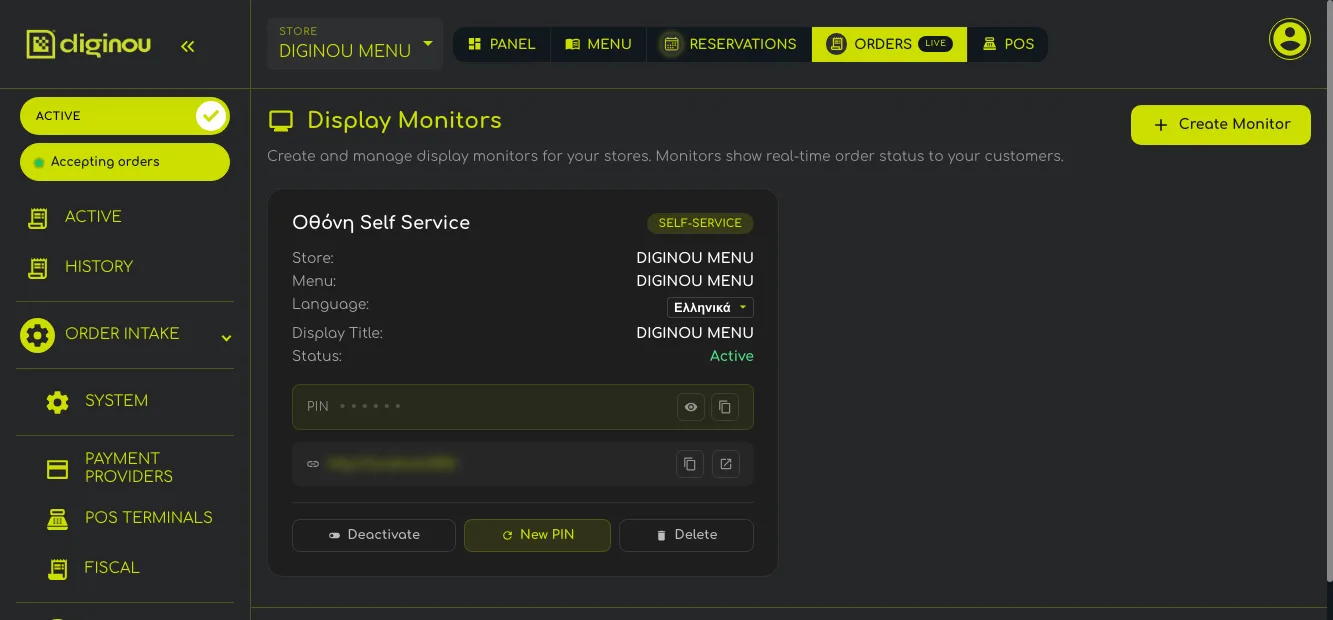
“Display Monitors” for self service. “Create Monitor” is at the top right.
Under STORE in the header, choose the monitor's store and press Create Monitor.
Under Select Store, the store is already locked. Press Next.
Choose Select Menu and Monitor Language. If you like, fill in Monitor Name and Display Title, then press Next.
Check the Summary and press Create Monitor. In Monitor Created!, keep the Access PIN, for example with Copy PIN.
On the TV or screen, open https://selfservice-monitor.diginou.com. You can copy or open it from the icons next to it on the monitor's card.
Type the PIN. On the card the PIN is hidden: the eye icon shows it.
Deactivate and Activate stop or start the monitor. The language changes from the list on the card and saves at once.
New PIN creates a new PIN. Confirm with New PIN, and the new PIN appears at the top of the page.
Delete removes the monitor, after you confirm in Delete Monitor?.
TIP
Give each monitor a name that says where it is, such as "Till" or "Entrance", so you can tell them apart in the list. The address is the same for every self service monitor: the PIN decides which one opens. While the screen stays on, it renews its connection by itself. If it stays off for more than 3 days, it asks for the PIN again.
WATCH OUT
With New PIN, the screen signs out within a minute and asks for the new PIN, while the old PIN stops working. After 5 wrong PINs from the same network, sign-in locks for 15 minutes from the last wrong one. A new PIN does not unlock it sooner. The menu and the store can't be changed from the card: for a different menu, create a new monitor. If the store serves no menu, you see This store serves no menu yet. Add a menu to it from Menus first. The page opens for the owner and managers, not for the POS Cashier.




