MENU & PRODUCTS
See what the panel asks when you delete a product, menu, ingredient or variation that is in orders.
When you delete a product, a menu, an ingredient, a variation or one of their groups, past orders don't change. Their lines keep their price. A deleted product now reads “Not available”, while an ingredient or a variation keeps the name it had. Before deleting, the panel checks which orders it is in.
WHERE TO FIND IT
MENU → PRODUCTS (Actions → Delete) · MENU → MENUS → menu → Delete Menu
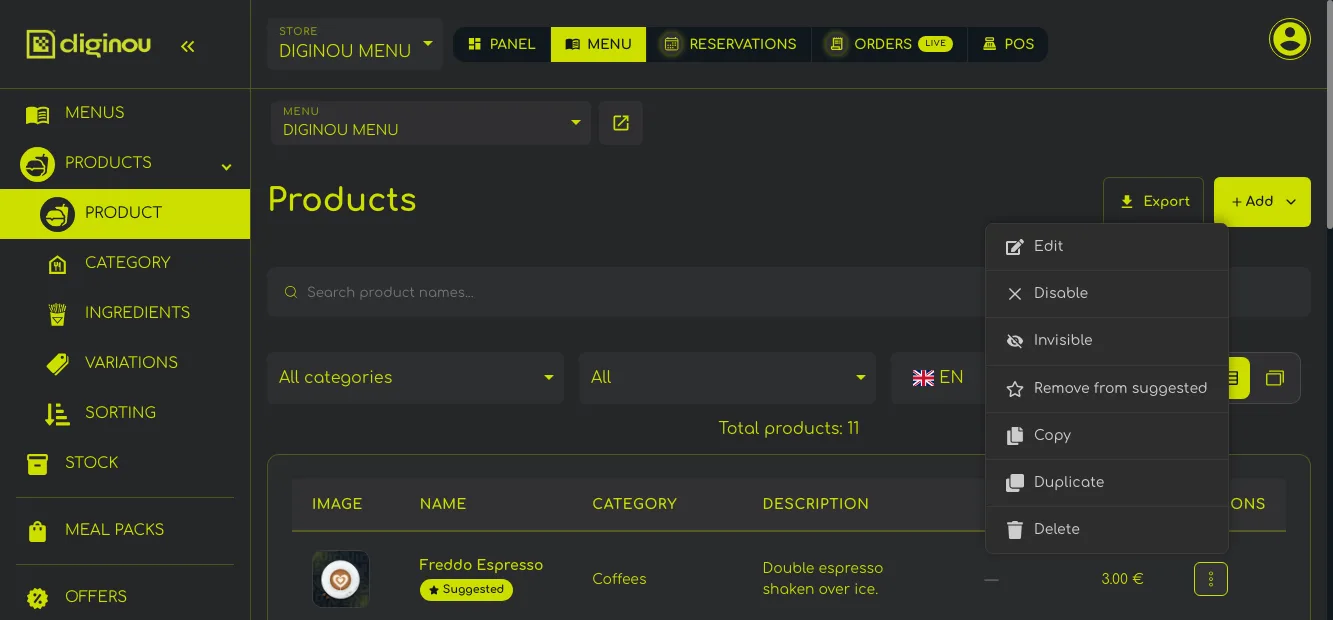
⤢ Enlarge
A product’s “Actions”. “Delete” is the last one.
Click Delete: in the product's Actions, in the ⋮ of an ingredient, a variation or a group, or Delete Menu in the menu's gear.
If you see Can't be deleted yet, it is in orders in progress, listed by their codes. Click OK and try again once they are completed or cancelled.
If you see Order without a receipt, click Yes, delete to go on, or No to issue the receipt first.
Otherwise, confirm the delete as usual.
Make the product inactive or hidden from Actions (Disable or Invisible), so nobody else orders it.
For an ingredient or variation, turn off Active or Visible in its edit window.
TIP
If the product is in offers or Meal Packs, the panel first asks The product is used elsewhere too and names them. A product offer of its own is deleted with it; a combo or a Meal Pack keeps its other products. If deleting an ingredient or variation leaves a product with nothing to pick in a required group, the panel tells you which.
WATCH OUT
Every order counts as in progress except completed, cancelled and refunded ones and an abandoned card payment. Order without a receipt appears only when the store has electronic receipts turned on: if you delete, the receipt issued later won't list the product on its own, but puts its amount on another of its lines. Deleting can't be undone. A store with even one order or receipt can't be deleted at all: you see The store cannot be deleted.




