STORES
Update your store's name, images, address, opening hours, special days and contact details.
Each store has one settings page made of cards: Basic info, Category, Location info, Working hours, Special days, Contact info, Social media, Google reviews and Currency. The hours decide when app orders are accepted, table orders included; waiters and the POS are not affected.
WHERE TO FIND IT
PANEL → STORES → store card
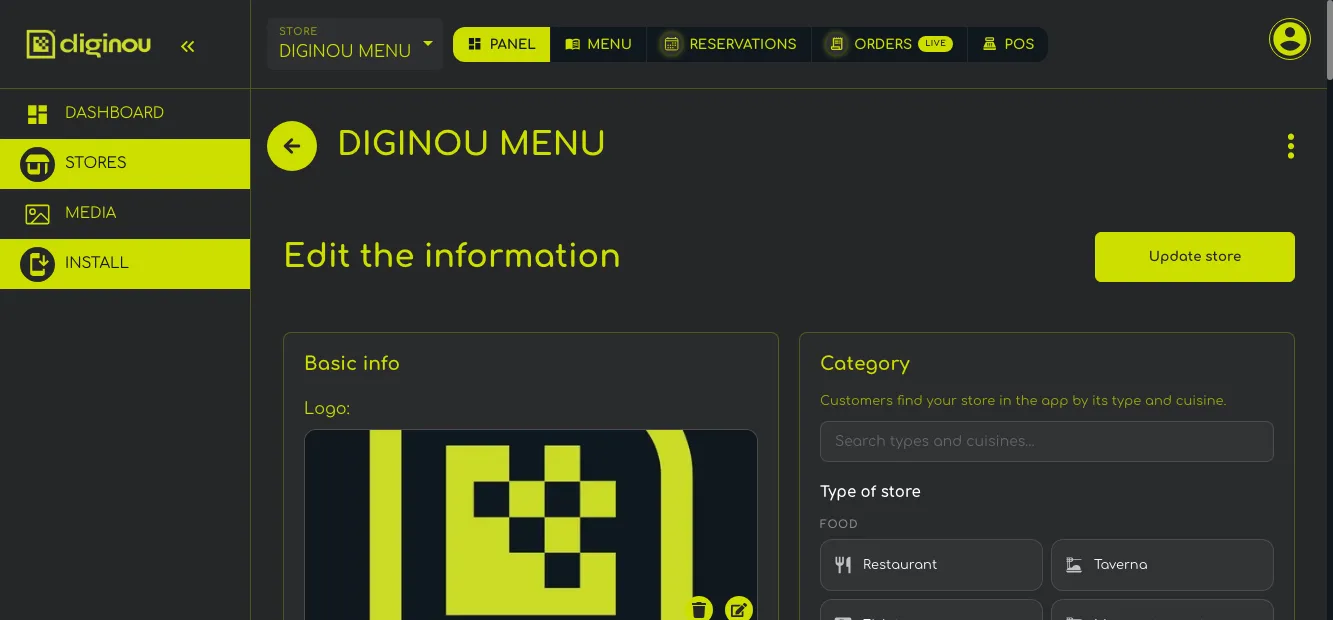
⤢ Enlarge
The store’s “Edit the information” page. Save your changes with “Update store”.
In STORES, click the store's card.
In Basic info, change the Logo, Background image and Name, and if you like add a network with Add wifi.
In Working hours, switch on each day you're open. + Hours adds a second period (for example lunch and dinner), 24 hours keeps you open all day and Copy to all days copies the same hours to every day.
Check Contact info, Social media and Currency, then click Update store. You'll see Store updated successfully.
In Special days, pick a Date.
Choose Closed, or Different hours with From and To, and if you like add a Note for customers.
Click Add. You'll see The day was saved.
Click the ⋮ next to the store's name, then Delete store.
Confirm with Yes, delete it!. Deleting cannot be undone.
TIP
In Location info, drag the map until the pin sits on your store; the address above updates by itself. Closed by your hours but want a few more orders? No need to change the hours: in the ORDERS side menu, click the status and Accept orders past the hours…, for 30 minutes up to 4 hours. Opening a store from the list doesn't change the STORE in the top bar.
WATCH OUT
Special days are not saved with Update store: click Add for each one. On a closed special day, the store also takes no bookings and sells no Save A Meal packs. With no hours at all, the store counts as open around the clock, and ORDERS reminds you with Set hours. Hours can run until 06:00 the next day at most, with up to 3 periods a day. If you typed the address by hand and it isn't found at street level, saving stops at Location info until you pick a suggestion or move the pin. The page opens for the owner and for managers, for the stores you've given them; only the owner can delete. A store with even one order or receipt can't be deleted (The store cannot be deleted), nor can one whose menu is served by it alone.




