ORDERS
Add or remove products, change the type, payment, address or time, and settle the difference in the amount.
An order you have accepted is edited from its own window, with the pencils next to Order Info, Products and Details. You add or remove products, change choices, the type, the payment, the address and the time. The customer gets a notification that the store made changes. If the amount changes, the panel asks how the difference will be paid or shows the refund.
WHERE TO FIND IT
ORDERS → ACTIVE → order → pencil
⤢ Enlarge
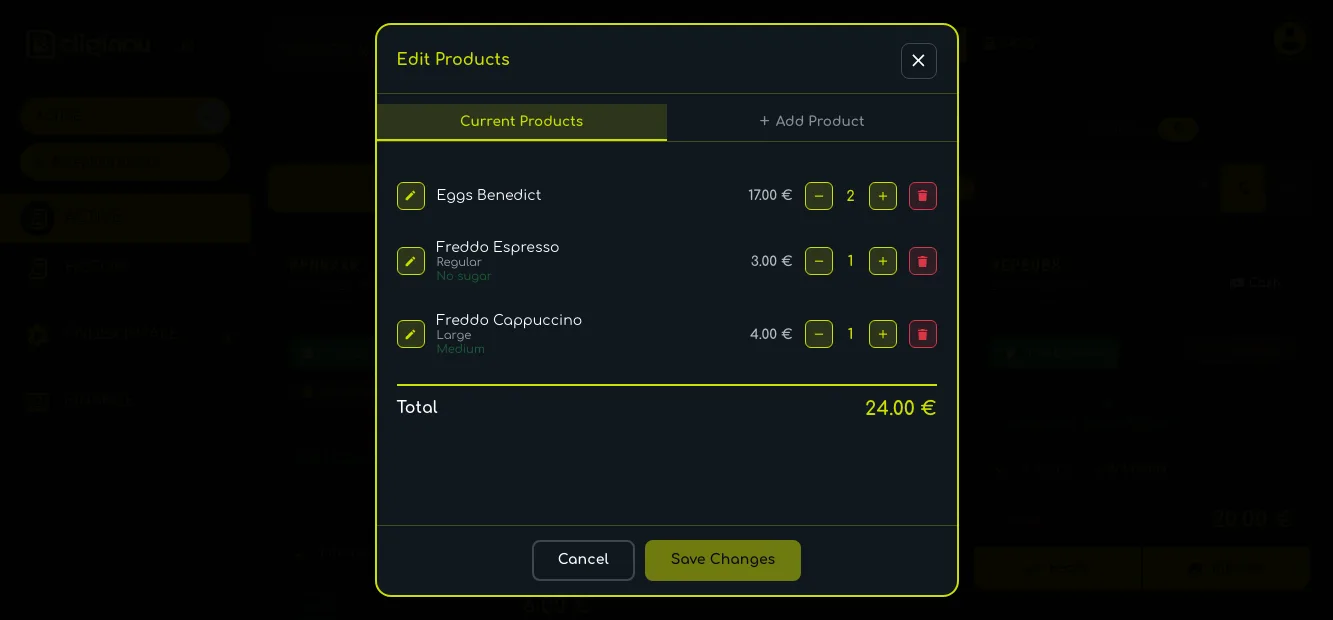
The pencil beside “Products” opens “Edit Products”: quantities, removal and “Add Product”.
Open the order from ACTIVE. While it is in Preparing, press the pencil next to Products.
Under Current Products, change a quantity with − and +, or remove a line with the bin. For choices and the comment, press the line's pencil and then Apply.
Under Add Product, pick a menu and a category, or search by name. Choose the options and Quantity, then press Add to Order.
Check the new Total and press Save Changes.
The pencil next to Order Info changes Order Status, Order Type, Payment Method and Payment Status.
The pencil next to Details changes the Service Point for Dine In, and the Contact Name and Contact Phone for Take Away.
For Delivery, type under Search New Address, pick the address and fill in Floor and Bell.
The same window changes the Delivery Time or Take Away Time. Press Save Changes.
If there is a balance left, Remaining: €4.50 opens with the question How should it be paid?. It doesn't open for an unpaid cash order, which is paid in one go.
For a cash order, press Cash once you have the difference. For a card order, press Card, then Send payment link to the customer's email or Pay on POS terminal.
With Later the difference stays unpaid. Collect it whenever you like with the Pay button in the order's window.
If the new total is lower than what was paid, Confirm refund opens with the Refund breakdown.
TIP
The discount is worked out again on the new products, by the terms it had when the order was placed: coupon, POS discount or loyalty reward. If the total drops below its minimum, the line reads, for example, Applies from €15.00 or Doesn't apply and takes nothing off until the total passes it again. When you change the time, the customer is told the new time too.
WATCH OUT
An order you haven't accepted can't be edited. Products change only in Preparing, and not while a fiscal document exists: the pencil says Locked — an active fiscal document exists for this order, the payment fields lock too, and you need a credit note first. If stock runs short, you see Not enough stock and how many fit. The owner, managers and the POS Cashier can make changes.




