MENU & PRODUCTS
Create and download print-ready QR codes: one for the whole store, or one for each table.
Customers scan the QR code with their phone and your menu opens. With the QR GENERATOR you create one QR code for a menu and store, or many at once, one for each active service point, and download them as a PDF ready to print.
WHERE TO FIND IT
MENU → QR GENERATOR
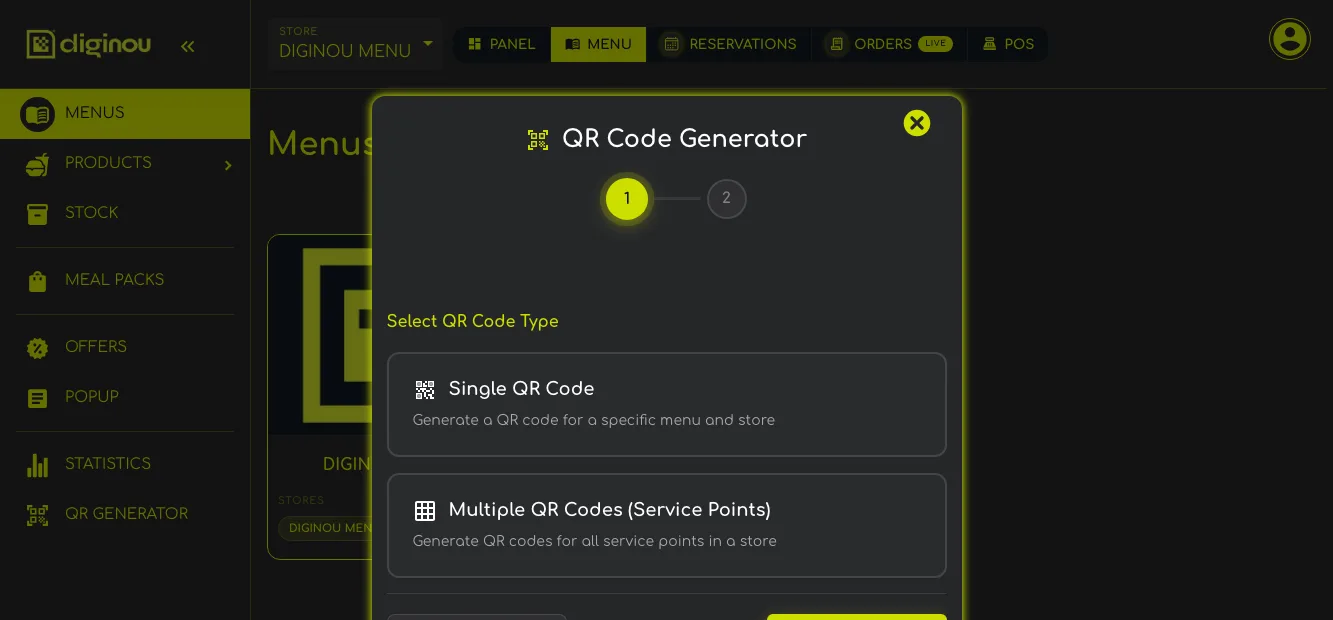
⤢ Enlarge
The “QR Code Generator”: one QR code, or one for each service point.
In the MENU side menu, click QR GENERATOR. In the QR Code Generator, choose Single QR Code and click Next.
Choose Select Menu, then Select Store. If the store takes orders, the next step lets you set a Default Order Type (Optional) and, for Dine In, a Service Point.
Choose the Print size, the PDF output mode (Print-ready A4 or One per page (exact size)) and the Number of copies.
Type a QR Code Label if you like, check the Summary and click Generate & Download. The PDF downloads ready to print.
Choose Multiple QR Codes (Service Points), then the menu and store. The panel says how many service points it found.
Choose the Print size and PDF output mode, type a Common subtitle if you like, which goes under SCAN ME, and click Generate & Download.
TIP
For orders from the table, create your service points first and choose Multiple QR Codes (Service Points): each QR code matches one table. For printing, the panel recommends A6 (105×148 mm). On the last step of a single QR code, the copy button next to Generate & Download copies the QR code's link. You can also get a quick QR code from each menu's gear, with Generate QR Code.
WATCH OUT
If you see Selected size doesn't fit on A4, pick a smaller size or switch to “One per page”. QR codes are made only for active service points, because customers can't order from an inactive one: the panel says how many were left out. If the store has no active one, click Create Service Points. The service points page opens for the owner and managers, not for the POS Cashier.




