ORDER INTAKE
Create ready-made discounts for the till and codes customers type in the app.
DISCOUNTS has two tabs. POS holds the ready-made discounts the cashier picks at the POS. User Codes holds the codes customers type at checkout in the app. Each discount belongs to the store selected under STORE. The page lists only that store's discounts, and a code is accepted only there. An order carries one discount only.
WHERE TO FIND IT
ORDERS → ORDER INTAKE → DISCOUNTS
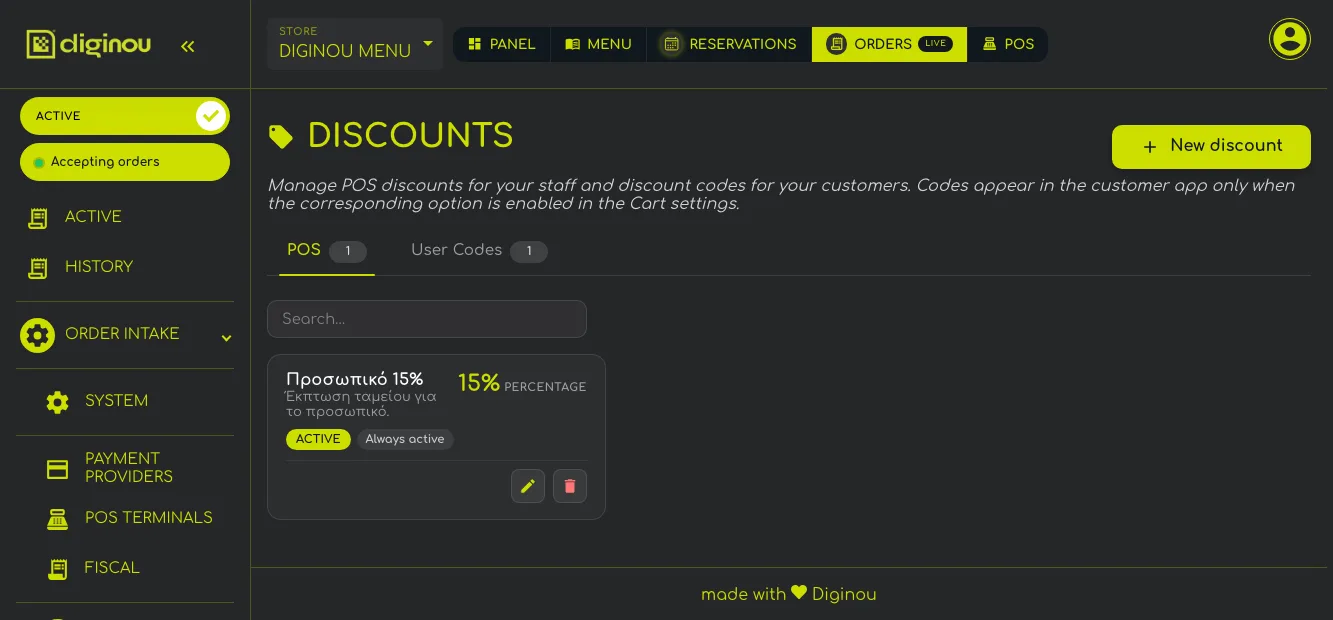
⤢ Enlarge
“Discounts”: POS discounts for your staff and codes for your customers.
Press New discount. Under Where will it be used?, choose POS Discount and press Next.
Enter a Name and, if you like, a Description, then press Next.
Choose Percentage (%) or Fixed amount, enter the Value and press Create.
Press New discount, choose Discount code and press Next. Enter a Name and the code in Discount code. Letters turn into capitals automatically.
Choose Percentage (%) or Fixed amount and enter the Value. Under Validity period, set From and Until, or leave them empty for always active.
Under Usage restrictions, set the Minimum order amount and, if you like, switch on Exclude items on offer.
Under Usage limits, set the Usage limit per coupon and Usage limit per user, leave Active on and press Create.
The edit icon lets you change a discount; press Save on the last step. The kind (POS or code) can't be changed.
The delete icon removes it, after you confirm in Delete discount?.
TIP
Codes work in the app only once you switch on Enable discount codes in the user app in CART. With the switch off, a code is refused even if it's already in the cart. Exclude items on offer leaves out every line with a discount of its own: a product on offer, a combo and a Meal Pack. The minimum amount and the percentage count the products together with the fixed charge and the delivery charge, never the tip or the bag. If the customer also has a loyalty reward, the larger of the two applies, and on a tie the code.
WATCH OUT
Deleting can't be undone, but old orders aren't affected: they keep the terms they were placed with. A card order waiting for payment already holds one use of the code, for every limit, for up to 45 minutes. If it isn't paid, the use comes back. So a code with a limit can look used up for a while. A customer who types 5 codes that don't exist within 15 minutes can't enter any code for a while, not even the right one. POS discounts have no Active switch: to stop a POS discount, delete it. A percentage can't be above 100, and a fixed amount larger than the order isn't accepted. The page opens for the owner and managers, not for the POS Cashier.




