STORES
Keep all your account's photos in one place, ready to use across the panel.
Media is your account's picture library: photos and GIFs. When you choose a logo, a background image or a photo, the panel shows the images from here and lets you upload new ones. The library is shared by all your stores, with up to 1 GB of space. Every photo is stored as WebP (a GIF stays a GIF), scaled down to 1920×1080 at most, and loses its hidden details, such as where it was taken.
WHERE TO FIND IT
PANEL → MEDIA
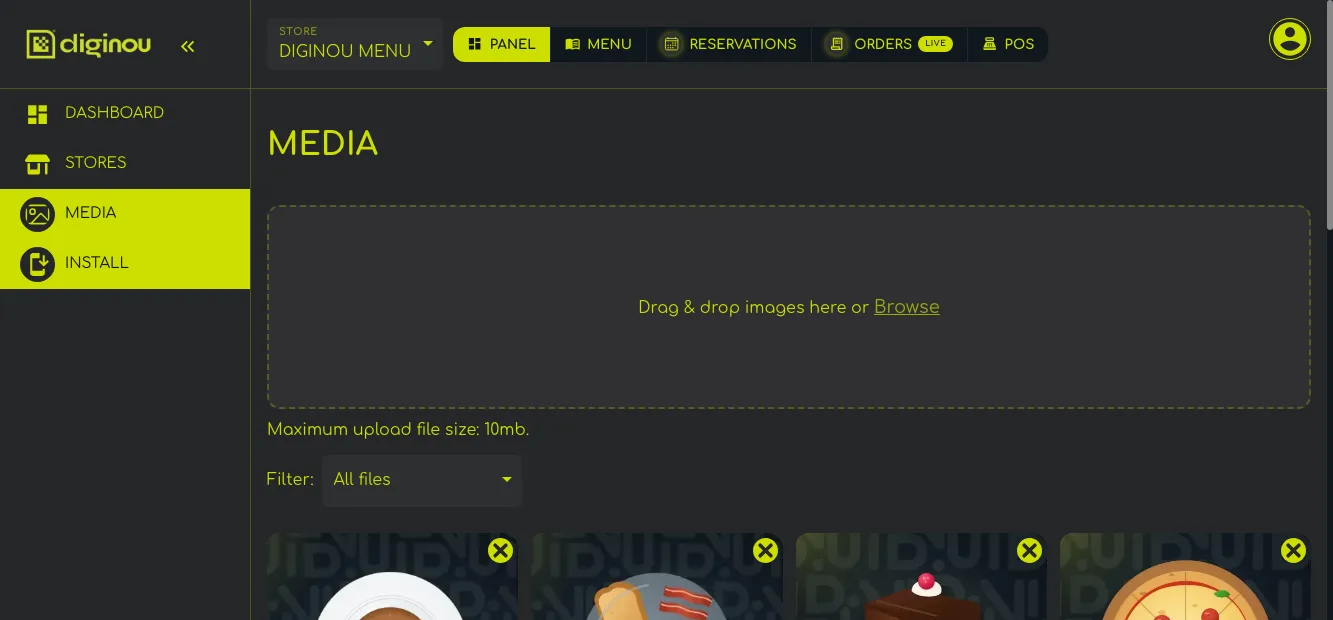
⤢ Enlarge
Media: drag images onto the box or press “Browse”. Up to 10 MB per file.
Click PANEL, then MEDIA.
Drag your pictures onto the Drag & drop images here or area, or click Browse to pick them. You can upload several at once.
Wait for Uploading to finish. The pictures appear in the list.
Use Filter to choose All files, Photos or Gifs. Click LOAD MORE to load more.
To delete, click the trash icon on the picture. If it's used somewhere, you see This picture is in use and where, for example Products:, Menus: or Stores:.
Confirm with Yes, delete it!. The picture no longer shows where it was used.
TIP
Click a picture to see it full size. Before you delete a picture that's in use, upload the new one and pick it wherever you want it.
WATCH OUT
Accepted files: PNG, JPEG, GIF and WEBP, up to 10 MB each; PDFs can't be uploaded. Your account has up to 1 GB of space. When it's full, every upload stops with Photo space full, which tells you how much you use: click Open Media and delete the ones you don't use. Deleting cannot be undone. Media opens for the owner and managers.




