MENU & PRODUCTS
Copy a link to your menu for one store, or download the menu as a PDF to print.
Besides the QR code, your menu can be shared as a link, for example in a message or on social media. The link opens the menu for one store and, if you like, with a default order type or table. With Print Menu you download the menu as a PDF, in any of its languages, to print it.
WHERE TO FIND IT
MENU → MENUS → menu → gear → Create Menu Link / Print Menu
⤢ Enlarge
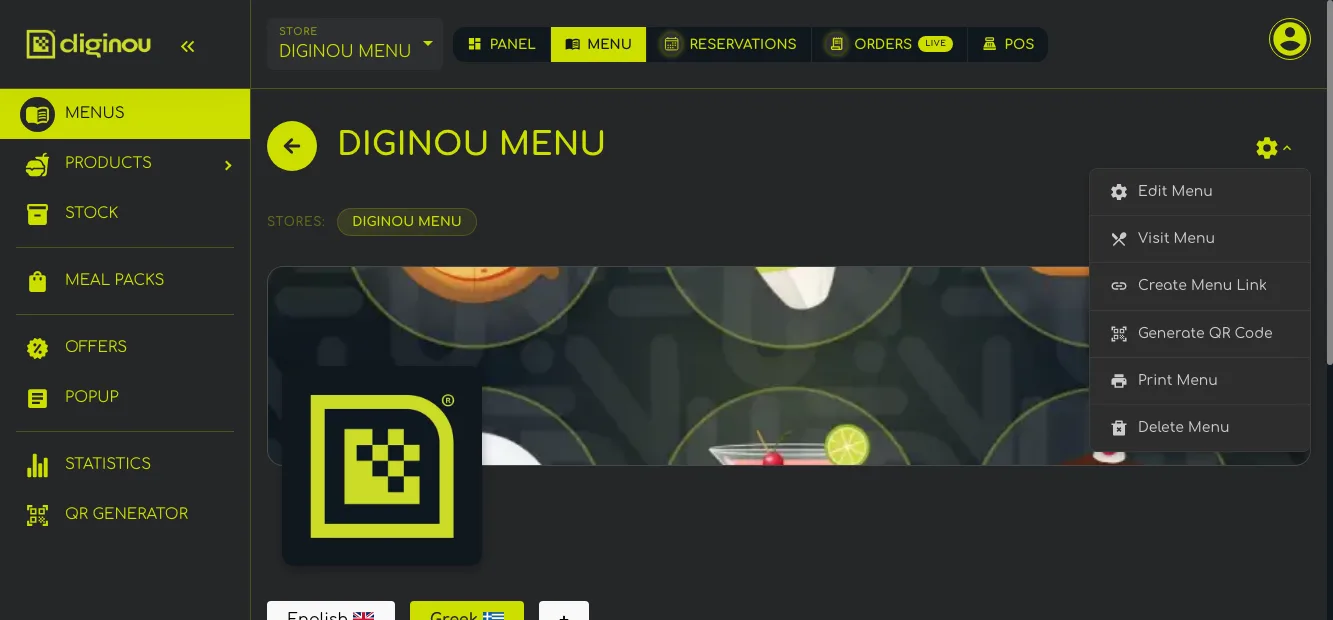
The menu’s gear: “Create Menu Link” for the link, “Print Menu” for paper.
In MENUS, click the menu's card, then the gear at the top right and Create Menu Link.
Under Select Store, choose the store and click Next.
If the store takes orders, choose a Default Order Type (Optional) if you like and, for Dine In, a Service Point. Click Next for the Summary.
Click Copy Link. You'll see Link copied to clipboard! and the link is ready to paste.
Choose the STORE you're printing for at the top.
In the menu's gear, click Print Menu, choose the language tab and click Print menu. You'll see Your print menu has been downloaded successfully! and the PDF downloads.
TIP
The link opens in the menu's default language, and customers change it from the menu. With a default order type, customers still see every available type, with that one already chosen. Without a service point, a Dine In customer scans the table's QR code. You can also copy a link from a Single QR Code in the QR Code Generator, with the copy button next to Generate & Download. Visit Menu opens the menu as a customer sees it.
WATCH OUT
Order types that aren't active in the store say Deactivated and can't be chosen. The printed menu has the menu's title and logo and, in the Sorting order, categories, names, descriptions and prices. It includes only the products that are active and visible in the store under STORE, in its currency, at catalogue prices, without offers. The PDF doesn't update itself: after changing the menu, print it again.




