GETTING STARTED
See today's orders, whether you're taking online orders, your menu views and your plan's limits at a glance.
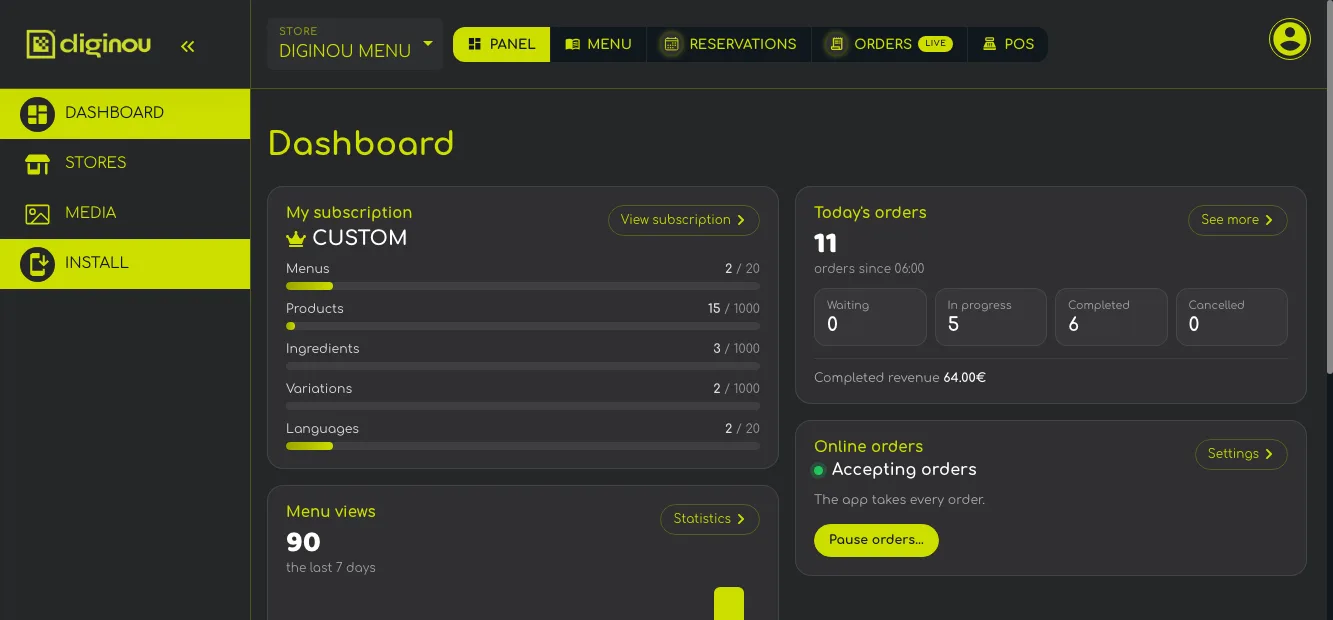
The Dashboard is the first page after you sign in. It has four cards: My subscription, Menu views, Today's orders and Online orders. The subscription covers the whole account; the other cards cover the store selected under STORE. Until Diginou approves your business, the status of the review also shows at the top.
WHERE TO FIND IT
PANEL → DASHBOARD
⤢ Enlarge
The Dashboard: your plan and how much of each limit you use.
Click PANEL at the top, then DASHBOARD in the side menu.
In the My subscription card, see your plan: FREE, ADVANCED or CUSTOM.
The bars Menus, Products, Ingredients, Variations and Languages show how much of each limit you use. When a bar fills up and turns orange, you've reached that limit.
The owner clicks View subscription to see the plan. On FREE, they upgrade with Upgrade in the account menu.
Today's orders counts from 06:00: Waiting, In progress, Completed and Cancelled, plus Scheduled when there are any. See more opens your active orders.
Online orders tells you whether the app is taking orders right now, for example Accepting orders or Closed (hours). Its buttons, such as Pause orders…, do what the status in ORDERS does, and Settings opens SYSTEM.
Menu views shows how often the store's menus were opened over the last 7 days, with Product views, Added to cart and Most viewed products. Statistics opens the full statistics.
If you see Diginou is reviewing your account, the review is in progress. Your QR menus and orders keep working normally in the meantime.
If you see Verification not approved, read the Reason. Correct your details from the icon next to your photo → Billing details.
Click Send for review again. You'll see Sent for review, and we'll let you know by email.
TIP
Until the review is complete, an icon next to your photo at the top right shows the same status on every page of the panel. Today's orders updates by itself when an order comes in or changes, and the owner also sees Completed revenue there.
WATCH OUT
Until your account is approved, your stores don't appear in the store list of the Diginou app. The Dashboard opens for the owner and managers; a POS cashier goes straight to the POS. On a device where the Panel tab has been hidden from Settings, the Dashboard doesn't open for anyone and sign-in lands on the first tab shown.




