GETTING STARTED
Put the panel on your phone's or computer's home screen for quick access and notifications.
You can install the panel as an app on your device, so it opens with one tap and you get push notifications. On Android, and in Chrome or Edge on a computer, you install it directly; on iPhone and iPad you do it through Safari.
WHERE TO FIND IT
PANEL → INSTALL
⤢ Enlarge
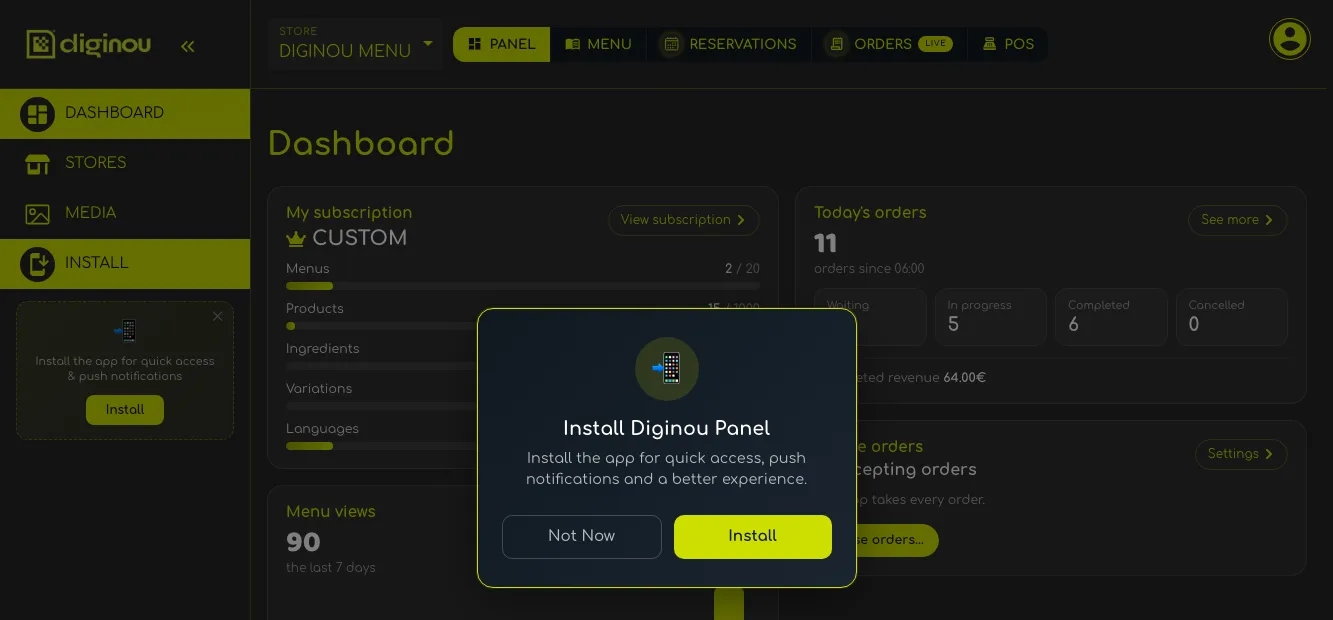
The “Install Diginou Panel” window. Press “Install” to add it to your computer or phone.
In the PANEL side menu, click INSTALL.
In the Install Diginou Panel window, click Install and confirm the browser's message.
Open the panel in Safari and tap INSTALL.
Follow the two steps the panel shows: Tap the Share button in Safari, then Tap "Add to Home Screen".
Tap Got It to close the instructions. The panel is now on your home screen.
TIP
If you opened the panel in another browser on your iPhone, tap Copy link and open the link in Safari. On iPhone and iPad, push notifications work from the panel installed on your home screen, so install it before you turn them on.
WATCH OUT
INSTALL is only in the PANEL side menu, and it disappears once the app is installed. A POS cashier doesn't have that tab, and on a device that hid it from Settings it doesn't show. The install window also pops up by itself a few seconds after you open a PANEL page. If you close it with Not Now, it won't pop up again for 7 days, but INSTALL always works.




