MENU & PRODUCTS
Add products to your menu with a photo, price and category, and change them whenever you need to.
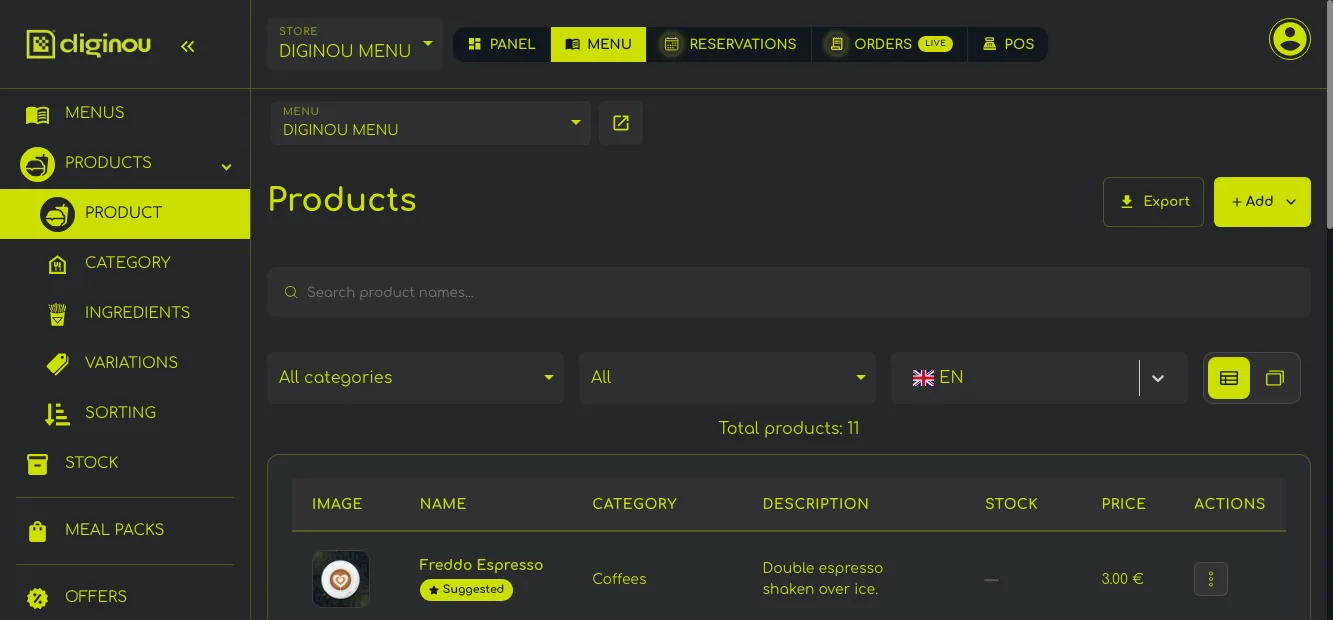
Products lists the products of the menu you've selected, as a table or as cards, with search and filters. Each product has a name and description in every language, an image, a category and a price, and can have variations and ingredients. Badges on the list show which ones are Suggested, Inactive or Hidden in the store you've selected under STORE.
WHERE TO FIND IT
MENU → PRODUCTS → PRODUCT
⤢ Enlarge
The “Products” list with search and filters. “Add” is at the top right.
Choose the menu in the MENU bar above the list. Click Add, then Add new product.
In each language tab, type the Product name and, if you like, a Description. Add an Image, pick a category under Select category (or create a New category) and type the Price.
Set the Visibility, Activate and Suggested switches. If the product has options, turn on Enable variation groups or Enable ingredient groups and pick the groups.
Click Add Product. Then choose Add another product or Back to products.
Under STORE, choose the store you want to change.
On the product's row, open Actions: Edit, Enable / Disable, Visible / Invisible, Mark as suggested, Copy to another menu, Duplicate or Delete.
Edit has the tabs Details, Translations, Variations and Ingredients. Save with Update product or Update translations.
TIP
Activate: the product can be ordered. Visibility: it shows on the menu; if it's visible but not active, it shows greyed out as “Not Available”. Suggested: it goes into the menu's “Suggested” row. Enable and Visible appear under Actions only when the product has a category. With the language filter you see the names in another language; missing ones say No title.
WATCH OUT
The switches you set when you create a product apply in every store of the menu. After that, changing them from Actions or Details applies only to the store under STORE, while price, image and category are shared. An active product also shows as “Not available” when one of its required groups has no option a customer can pick: the panel warns you first with A product will become unavailable. If the product is in an offer, the panel asks you to confirm before you change its price and tells you what happens when you make it inactive or hidden. A product in an order in progress can't be deleted. How many products you can have depends on your subscription; the ones over it show a red X instead of Actions.




