MENU & PRODUCTS
Add many products at once, with categories, variations and ingredients, from one Excel file.
Bulk Import gives you an Excel template for the menu you choose, with columns for every one of its languages, inactive ones too. You fill it in and upload it, and the panel checks it and shows you a preview before it creates the products. With Export you download your products to Excel in the same format.
WHERE TO FIND IT
MENU → PRODUCTS → PRODUCT → Add → Bulk Import
⤢ Enlarge
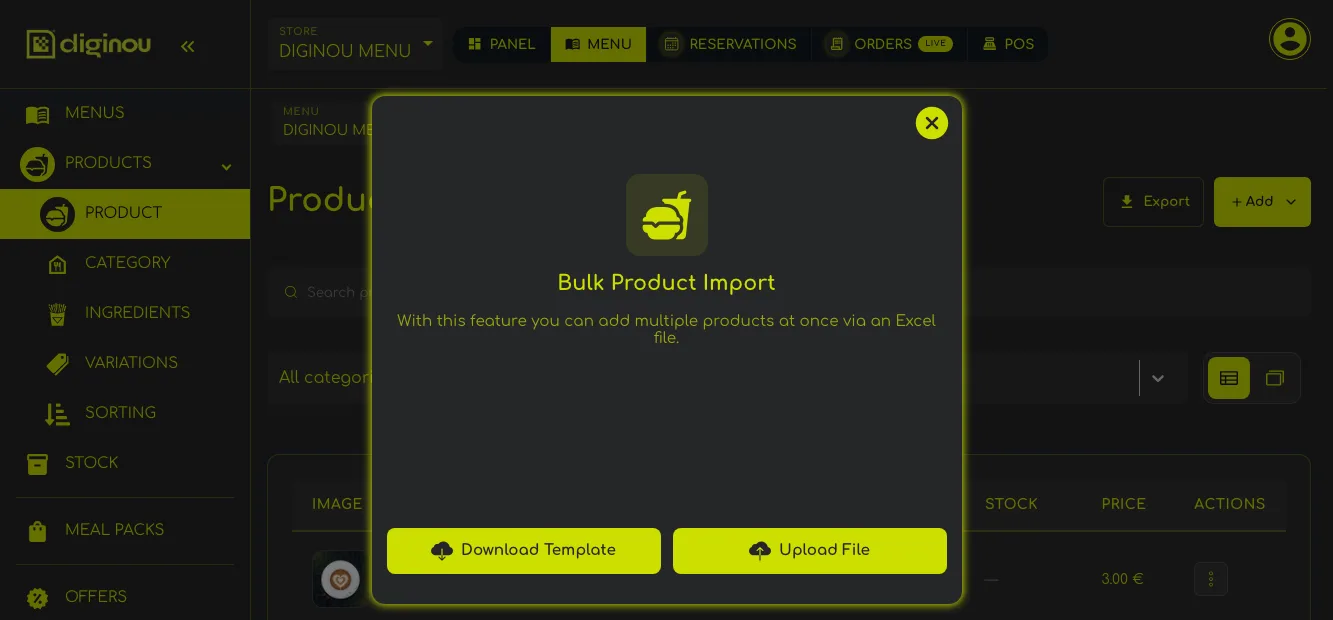
The “Bulk Product Import” window: download the template, fill it in and upload it.
In products, click Add, then Bulk Import. Bulk Product Import opens.
Click Download Template. Choose Select Menu and the Template Language, the language of the file's instructions. Check the Summary and click Download Template again.
Fill in the sheets in this order: Categories → Variation Groups → Ingredient Groups → Products, with a name in every language. For an image, write only the file name.
Click Upload File, then Select file and Validate. Check the Preview and click Confirm & Create.
TIP
Export downloads your products exactly as they are filtered at that moment, in the same format as the import. The Summary before the download shows the Menu languages, the categories and groups that already exist, and how many products your subscription has left.
WATCH OUT
Upload only an Excel file (.xlsx). Every new row (category, group, variation, ingredient, product) needs a name in every language of the menu, inactive ones too: otherwise Validate rejects it, with one error for each missing language. If the file goes over your subscription's limits you'll see Subscription limit exceeded, and if its languages don't match the menu's, Language mismatch: then download a new template. The export includes up to 5 variation groups and 5 ingredient groups per product.




