MENU & PRODUCTS
Add options such as small, medium and large, each with its own price.
Variations are alternative versions of a product, for example sizes, each with a price and Active and Visible switches. You put them into variation groups and attach each group to products. From each group, the customer picks one variation.
WHERE TO FIND IT
MENU → PRODUCTS → VARIATIONS
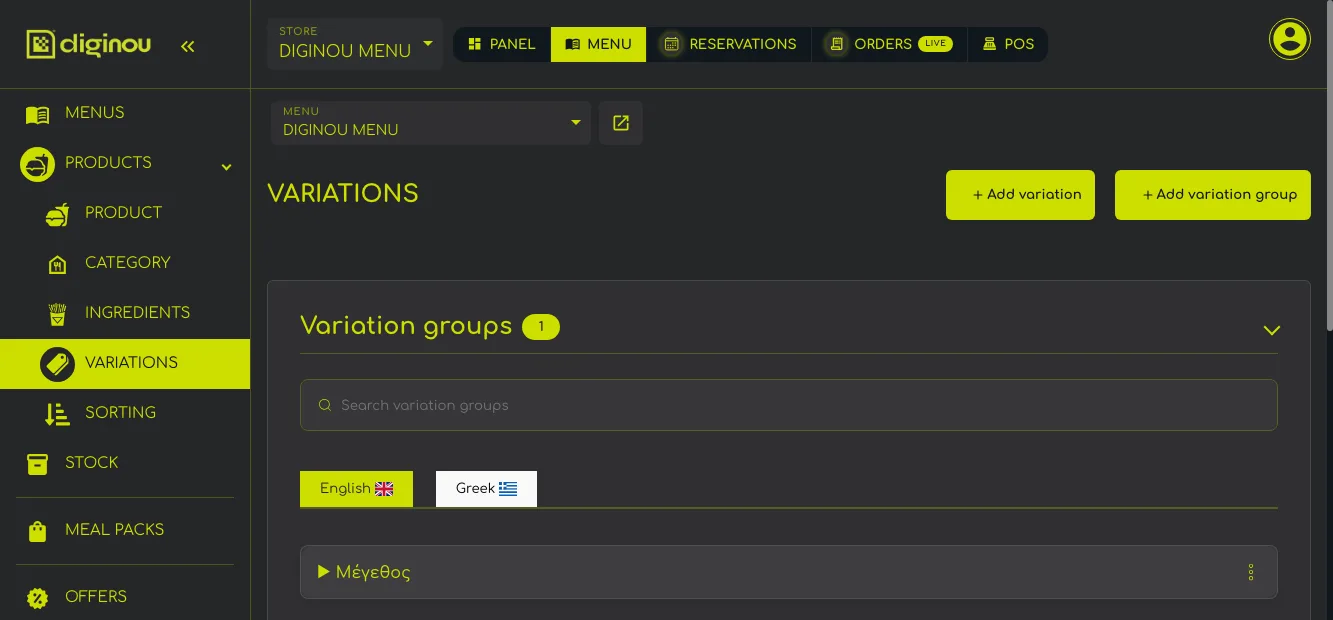
⤢ Enlarge
The “Variations” page, with the buttons for a variation and a variation group at the top right.
Choose the menu in the MENU bar and click Add variation.
Fill in Name and Description in each language, and the Price.
Set Active and Visible and click Create variation.
Click Add variation group. New variation group opens.
Type a Group name (for internal use) and, in each language, a Group name (for example “Size”) and Group description.
Under Variations, pick the ones you want and click Create. You'll see Variation group created.
On the product, turn on Enable variation groups (or use the Variations tab when editing it) and pick the group.
TIP
The group name in each language is the title customers see above the options, for example “Size”. The first variation in the list is the preselected one. A variation that is visible but not active shows greyed out and can't be picked. An ingredient group can show only with some variations, for example sugar only with “Sweet”: you set that on the ingredient group. A variation's Active and Visible apply in every store of the menu.
WATCH OUT
Every name must exist in all the menu's languages, or it isn't saved. A variation or group that is in an order in progress can't be deleted (Can't be deleted yet); until then, make the variation inactive or hidden. Past orders keep its name and price. Deleting a variation also takes it out of every ingredient group shown only with it; if none is left, that group shows with every variation. If a change leaves a product with nothing to pick, the panel asks with A product will become unavailable. Deleting can't be undone. How many variations you can have depends on your subscription.




