ORDERS
Accept new orders, move them through to completion, and print tickets and receipts.
Active is the live board of orders for the store you have selected under STORE. Every new order from the App arrives here with a sound and the notification New order received!. The page has three tabs: New Orders (Now and Scheduled), In Progress (Preparing and Ready) and Outgoing (Served and Delivering). A POS-type sale is completed as soon as it is paid and never comes through here. Scheduled orders wait under Scheduled until their time comes.
WHERE TO FIND IT
ORDERS → ACTIVE
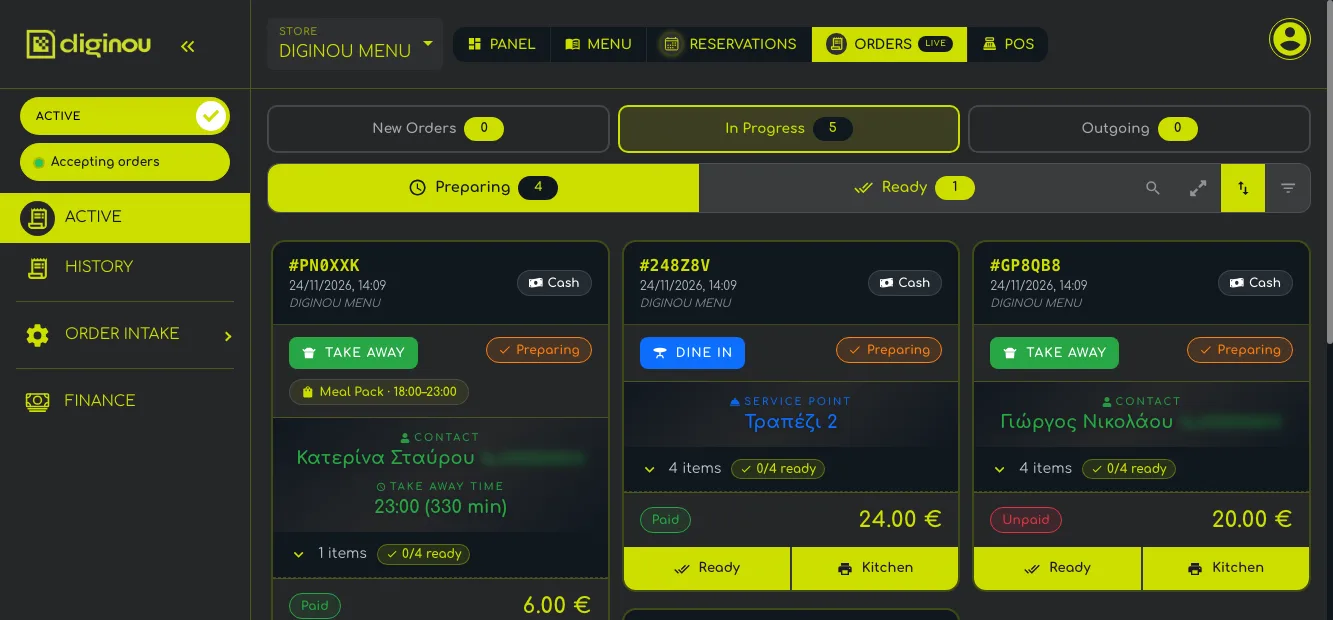
⤢ Enlarge
Active orders: New, In Progress and Outgoing, for now or scheduled.
Open New Orders → Now and tap the order's card to see its details.
For Delivery or Take Away, set the time next to Delivery Time or Take Away Time with − and +, in steps of 5 minutes, from 15 to 120. It starts from the time you set under DELIVERY or TAKE AWAY.
Press Accept, or Start now for a scheduled order. The order moves to Preparing.
To decline it, press Cancel and then Confirm. If it is already paid, choose Yes, Refund or No, just cancel.
On the card, open the products and press the ✓ (Ready) next to each one that is done. The card counts, for example, 2/4 ready.
Press the button on the card: Ready, then Served for Dine In or Delivering for Delivery, and finally Complete. Take Away and Self Service are completed straight from Ready.
If you complete an unpaid cash order, answer Did the customer pay? with Paid, or press Ignore to leave it unpaid.
To print, open the order and press Kitchen, Order, Delivery or Receipt. The buttons appear once you accept the order.
Under In Progress and Outgoing, the magnifier (Search by Order ID) finds an order by its code.
The buttons next to it switch on Compact View and change the order to Newest first or Oldest first.
Under In Progress, Filter by type keeps only Delivery, Take Away or whichever type you pick.
TIP
With automatic confirmation on, a new order shows a countdown. When it runs out, the server accepts the order, even if no panel is open. The card reads Auto-accepted — Already preparing, moves to the top of Preparing, and the sound goes on, for up to a minute, until you press Got it. To change the products, address or time of an order you have accepted, use the pencils inside its window.
WATCH OUT
While an order has a fiscal document, its products and payment are locked (Locked — an active fiscal document exists for this order) and you need a credit note first. When you cancel an order with products in stock, check Put the units back in stock: it is already ticked for an order you haven't accepted, not for one that was prepared, and then the units are recorded as waste. Active opens for the owner, managers and the POS Cashier.




