ORDERS
Find completed, cancelled or refunded orders, and see the ones still waiting for payment.
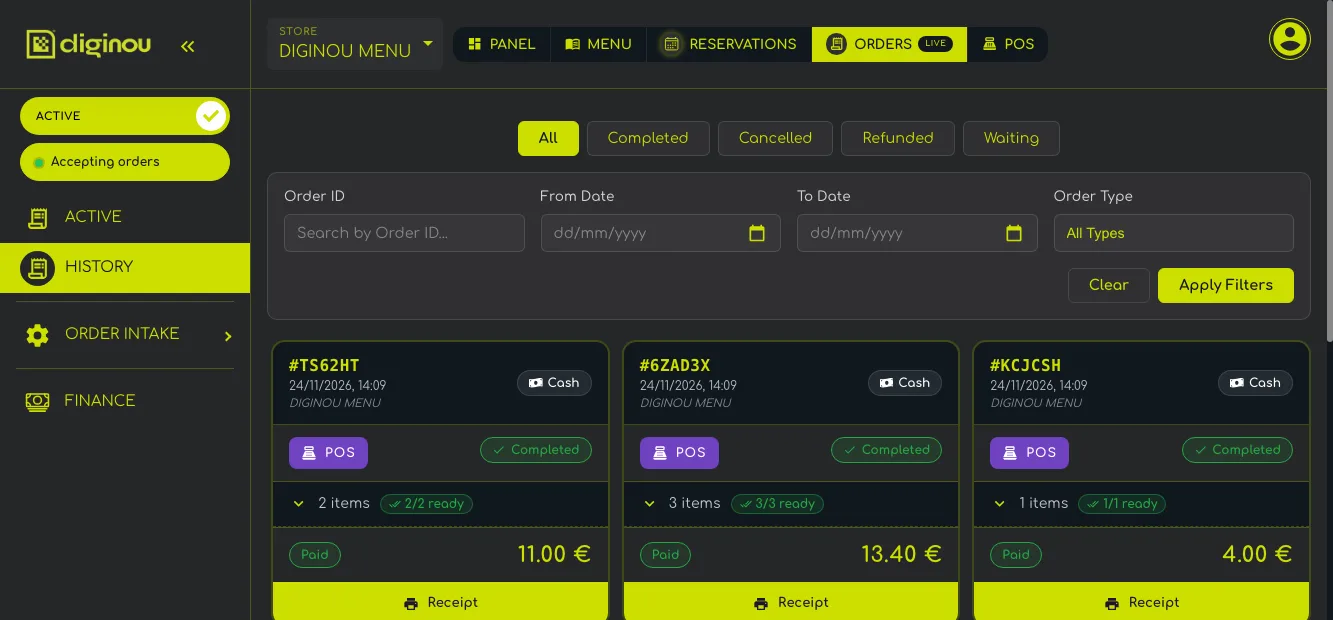
History lists your finished orders, 12 per page, with filters for order ID, dates and type. The Waiting tab lists separately the orders still waiting for payment: a card payment that never went through, or a POS order waiting for the terminal. Opening an order gives you the same window as in Active, so you can reprint a receipt or correct its status.
WHERE TO FIND IT
ORDERS → HISTORY
⤢ Enlarge
“History”, with filters for order ID, dates and order type.
Pick a tab: All, Completed, Cancelled or Refunded.
Fill in any filter you need: Order ID, From Date, To Date or Order Type.
Press Apply Filters. Clear empties the filters.
Move to another page with Previous and Next. Tap a card to open it, print a Receipt or change its status with the pencil next to Order Info.
Open the Waiting tab.
Choose Today or Older.
Tap a card to see what was ordered. Orders rung up in the POS that are waiting for the card can be sent to the terminal again from the POS, under POS Orders → Pending.
TIP
In Order ID the short code is enough: your store's prefix is added automatically. A product you later deleted from the catalogue stays in past orders at its price and reads "Not available".
WATCH OUT
Filters do nothing until you press Apply Filters. Orders waiting for payment that are older than one week are deleted automatically, unless a fiscal document was issued for them: those stay under Waiting. If you set a finished order back to an active status, it leaves History and goes back to Active. History opens for the owner, managers and the POS Cashier.




