ORDER INTAKE
See which table is asking for a waiter, answer it, and choose which waiters receive calls.
Customers seated at a table can call a waiter from the App. Each call appears here with the table, the time and the customer's note, and with a red count next to CALLS. The last 20 calls of each store stay on this device. The owner and managers also choose whether the feature is on, which waiters receive calls, and how long a customer waits before calling again.
WHERE TO FIND IT
ORDERS → ORDER INTAKE → DINE IN → CALLS
⤢ Enlarge
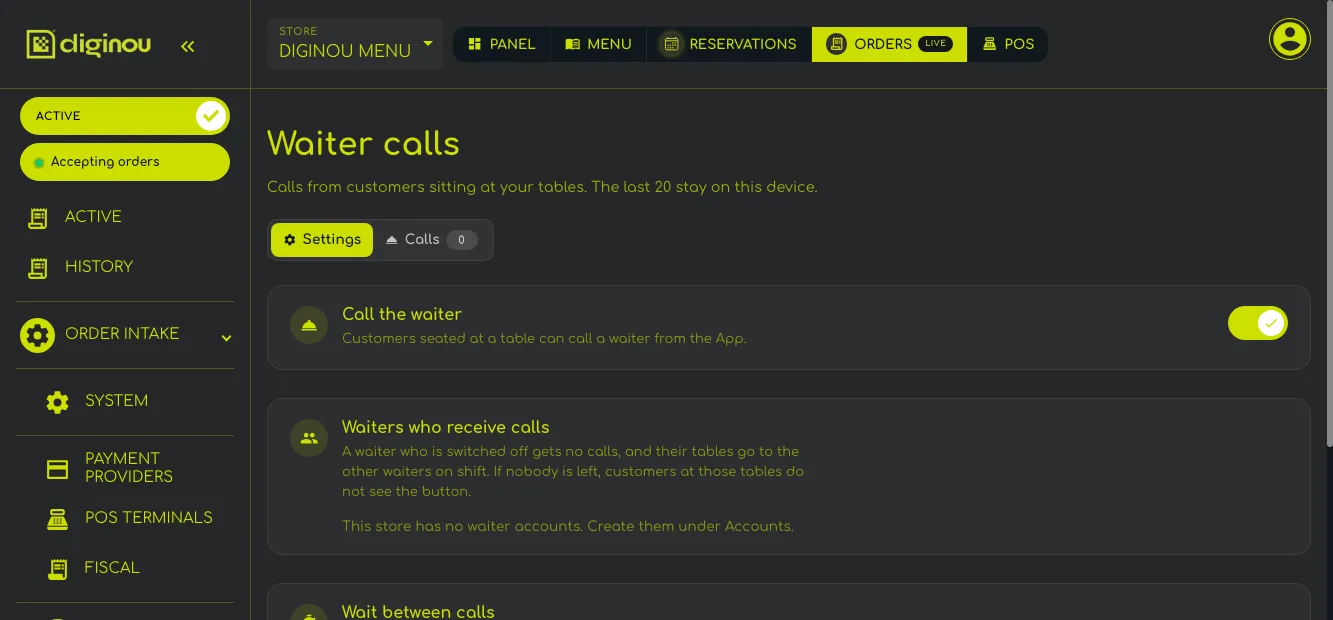
“Waiter calls”: the switch for calls and the waiters who receive them.
If you are the owner or a manager, the page opens on Settings. Press Calls in the switch at the top; the number next to it counts the open ones.
Press On my way. The call shows WENT, with the name of whoever answered.
Or press In a minute. The call shows WAITING, and when you set off you press Going now.
The ✕ (Dismiss) removes the call from your own screen only.
Under Settings, switch Call the waiter on or off.
Under Waiters who receive calls, switch each waiter on or off. Their row reads Receives calls or No calls. The switches are saved right away.
In Wait between calls, enter a number of seconds from 10 to 600 and press Save.
TIP
A new call reaches you on any page of the panel, with the notification Waiter call from Table 4.. The red count also shows next to ORDER INTAKE and DINE IN, so you see it with the groups closed. When you open the panel, it also brings in the calls that stayed open while it was closed.
WATCH OUT
The last 20 calls of each store stay on this device and come back after a reload; an open call is never the one dropped. After 30 minutes without an answer, a call shows NO ANSWER, has no buttons and stops counting; one that got In a minute stays WAITING, with no buttons. When you sign out, the calls are cleared from the device. Only the owner and managers see the settings, and they can be changed only once the order system is set up. The POS Cashier sees the calls only, with no switch.




