POS
Ring up products at the till, choose the order type and take payment in cash or by card.
The POS is the till of the store you have selected under STORE. It shows the active, visible products of all its menus, plus combos and Meal Packs. You build the cart, choose the order type and take payment in cash or by card on a Viva terminal. A POS sale is completed as soon as it is paid, without going through the active orders. On a phone, the cart opens from the Cart button with the total.
WHERE TO FIND IT
POS
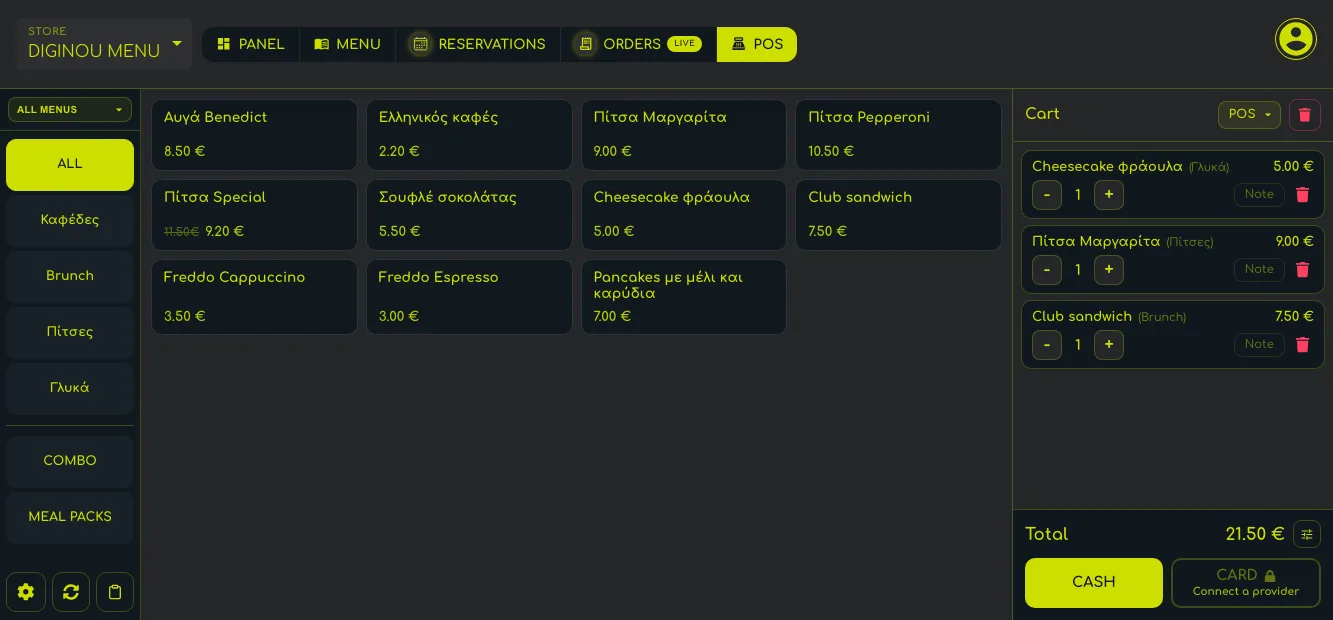
⤢ Enlarge
The POS: categories on the left, products in the middle, the cart on the right.
Above the categories, choose a menu or leave All Menus. Pick a category, such as ALL, COMBO or MEAL PACKS, and tap the products.
If a product needs a choice, a window opens. Choose whatever says Required, add Add Extra Ingredients or Add Note if you like, and press Add to cart.
In the cart, change the quantity with − and +, add a note with Note or remove a line with the bin. Tap a line to change its choices, then press Update.
For an invoice, a discount or internal consumption, press the sliders next to Total.
The order type sits at the top right of the cart. Leave POS for a sale at the till or pick another: Dine In needs a Service point, Take Away and Delivery need Customer details.
For cash, press CASH. Enter the amount in Given or tap 5, 10, 20 or 50 €, check the Change and press Complete.
For card, press CARD. The customer taps or inserts the card on the terminal, and a bar above the buttons shows which stage the sale is at.
At the end you see Order created!, or by card Card payment received — order created!, and the cart empties.
Under the categories, the clipboard opens POS Orders with the tabs Pending, Completed, Cancelled and Refunded. The number on it counts the orders waiting for a card payment.
The gear opens Settings: POS Terminals, Printer Options, which takes you to the printer page, and No change window.
The button with the two arrows reloads menus, products, offers and tables, for example after you change something in a menu.
TIP
With No change window, CASH completes the sale in one tap. In Given, an empty field means the customer gave the exact amount. This setting, the terminal, the order type, the Dine In table and the cart itself stay on the device where you set them, even after a page refresh.
WATCH OUT
Order types other than POS open only when they are active in the order system; otherwise they say disabled. CARD stays locked with Connect a provider or Choose a terminal until both are done. If you see Prices have changed, the cart takes the new prices and you charge again. With Not enough stock, Sell anyway appears only when the store's stock is set to Staff, after confirming. The POS opens for the owner, managers and the POS Cashier, who needs to be given a store.




