ORDER INTAKE
Turn online orders on, choose ordering and payment methods, and pause when you're too busy.
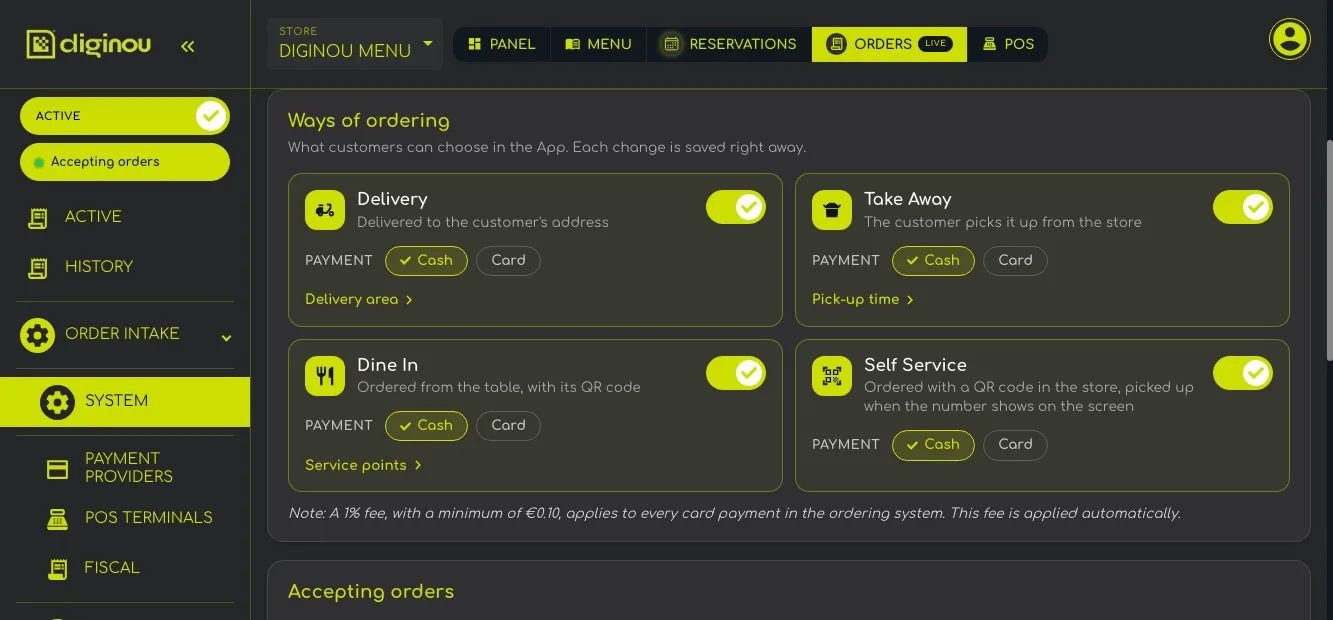
The Order System turns online ordering from the App and QR codes on or off. The page has four sections: Online orders, with its status and buttons, Ways of ordering, with Delivery, Take Away, Dine In and Self Service and the payment each one takes, Accepting orders and Notifications. From the side menu you can pause orders for a while, while waiters and the POS carry on as usual.
WHERE TO FIND IT
ORDERS → ORDER INTAKE → SYSTEM
⤢ Enlarge
The “Order System”: each way to order with its payment methods, and the other settings.
If the page says No order system exists for this store yet., press Create Order System. It is created switched off, with every way of ordering off.
Under Ways of ordering, switch on the card of each way you want. Dine In needs a service point first and Delivery a delivery area; if they are missing, the panel takes you to set them up.
On each card's Payment row, choose Cash, Card or both. Every change is saved right away.
When you switch on the first way, the panel asks Switch online orders on?. Press Switch on now, or Later and switch them on afterwards with Switch online orders on.
Under Automatic confirmation, set after how many seconds, from 1 to 60, an unanswered order is confirmed by itself, or choose Never — I answer every order myself.
Under Start scheduled orders (minutes before their window), enter 0 to 240 minutes.
Press Save.
In the side menu, switch off ACTIVE, or press the status line below it and then Pause orders….
Under Which ways of ordering? pick the ways, and under For how long? the duration: 15 minutes, 30 minutes, 1 hour or Until closing time.
Press Pause. The pause ends by itself; to resume earlier, press the status line and Resume orders.
TIP
With Digital menu only — orders go through the waiter, customers see the menu in the App and on the QR codes and order from the waiter. Your settings are kept for when you want them again. With Remind me when online orders are switched off, the panel tells you when your hours open while online orders are off; the note above Orders has Not today and Don't warn me again. Below the ways of ordering, a note states Diginou's fee on card payments, with your account's own rate.
WATCH OUT
Online orders open only with a way of ordering switched on; otherwise the status reads No way of ordering on. If you switch off the last one, the panel asks This is the only way of ordering on, and Switch both off switches online orders off too. Card needs a connected payment provider, which only the owner can connect. SYSTEM opens for the owner and managers. The POS Cashier doesn't see the switch: they pause and resume from the status line, without All online orders, until I switch them back on.




