ORDER INTAKE
Set how far you deliver, the delivery charge and minimum order, and the estimated times.
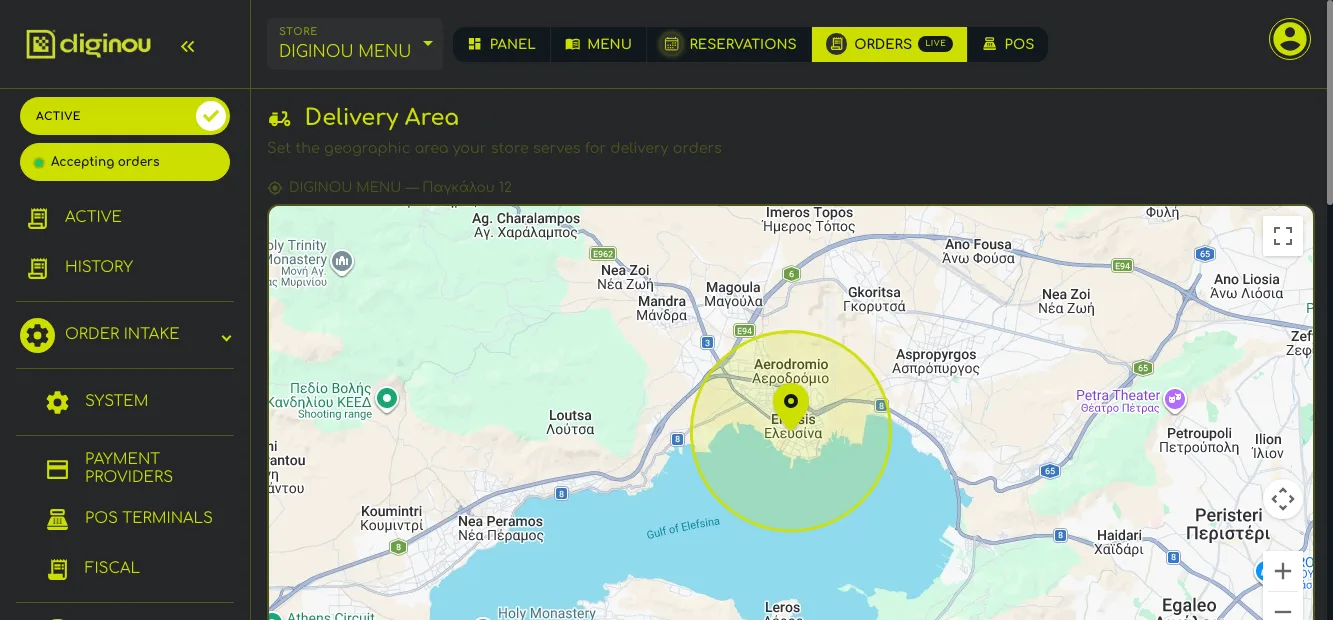
The settings apply to the store selected under STORE. In Delivery Area you draw a delivery circle around the store on the map. You also set the estimated delivery time, the delivery extra charge and the minimum delivery order there. The Take Away page sets the estimated time for take away. Whether you accept delivery or take away at all is switched on in the order system.
WHERE TO FIND IT
ORDERS → ORDER INTAKE → DELIVERY · ORDERS → ORDER INTAKE → TAKE AWAY
⤢ Enlarge
The “Delivery Area” on the map: the circle is the radius the store serves.
In DELIVERY, move the Delivery Radius slider, from 0.5 to 30 km, and press Save Delivery Area.
In Delivery Estimation Time, set the time, from 15 to 120 minutes in steps of 5, and press Save Estimation.
In Delivery Extra Charge, set the amount with − and +, in steps of €0.50, and press Save Delivery Charge.
Do the same in Minimum Delivery Order and press Save Minimum Order.
Open TAKE AWAY in the side menu.
In Take Away Estimation Time, set the time, from 15 to 120 minutes, and press Save Take Away Estimation.
TIP
Set the charge to 0 for free delivery, or the minimum to 0 for no minimum. The minimum counts only the products, before any coupon. The delivery charge, the fixed charge (cover), the tip and the carrier bag don't count. It applies to customers' delivery orders from the app, which shows them how much is missing. Phone orders taken at the POS have no minimum.
WATCH OUT
Delivery Area needs the store's address and location: if they're missing, press Go to Store Settings. The Take Away page doesn't need them. Every save button on the Delivery page saves the whole page as it stands: radius, time, charge and minimum. With a radius, every delivery order, phone orders at the POS included, needs an address with a point on the map inside the circle. Remove Delivery Area, once you confirm with Remove, clears the radius, time, charge and minimum. From then on delivery accepts any address, while the take away time stays. Both pages open for the owner and managers, not for the POS Cashier.




