POS
Enter an order taken over the phone in the POS, with the customer's details and address, and choose whether they pay now or on hand-over.
The POS takes the orders customers give you over the phone. You enter a name and phone, and for Delivery the address, and the POS finds its point on the map. With cash, you choose whether the customer pays now or when they receive it. The order goes straight to preparation, with no acceptance step.
WHERE TO FIND IT
POS → CART → ORDER TYPE → DELIVERY / TAKE AWAY
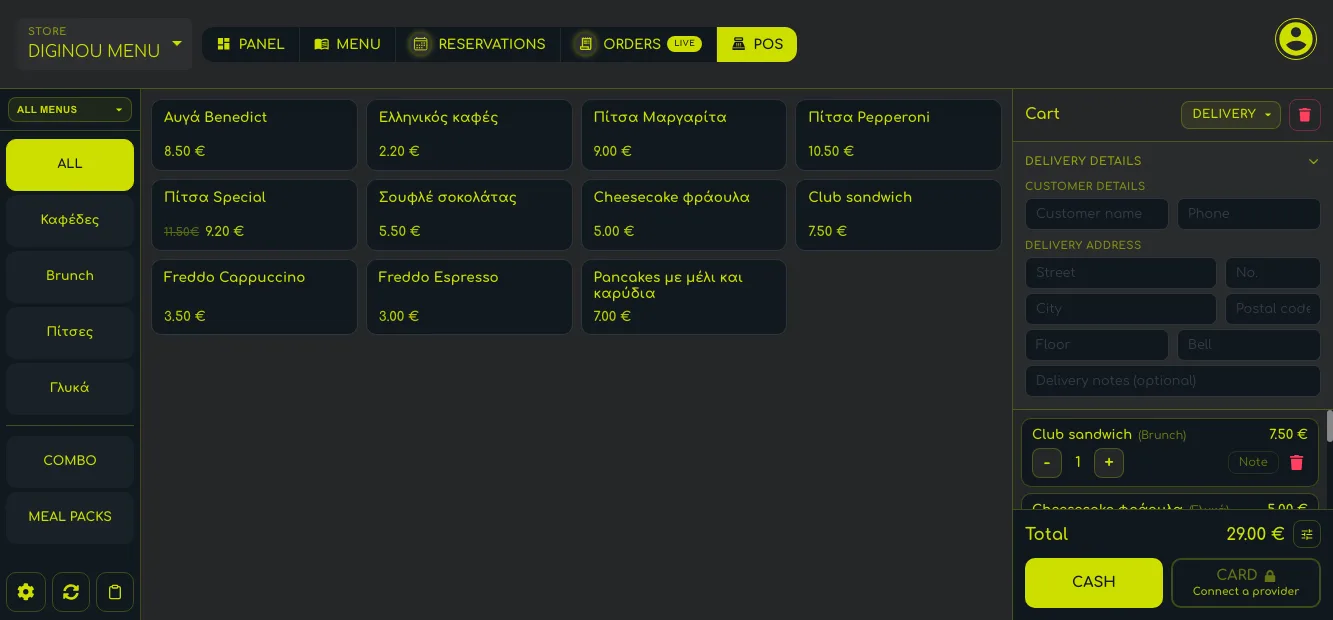
⤢ Enlarge
In the POS cart, the “Delivery” type asks for the customer’s details and the delivery address.
Press the order type at the top right of the cart and choose Delivery or Take Away.
Under Customer details, enter Customer name and Phone.
For Delivery, under Delivery address enter Street, No., City and Postal code, plus Floor, Bell and notes for the driver if you like.
Add the products as in any sale.
Press CASH or CARD. The POS first looks the address up on the map.
If the store delivers within a radius and the address isn't found exactly, Delivery point opens. Search for the address or move the map until the pin is on the door, and press Deliver here.
If you see Outside the delivery area, it says how far the address is. If the point is wrong, press Fix on the map and the order is sent again.
With CASH, When does the customer pay? opens with the amount.
Press Pays at the door (Delivery) or Pays on pick-up (Take Away). The order goes out unpaid and you see Order sent, unpaid: it is collected when it is handed over.
Or press Paid now: the window with Given and Change opens and the order goes out paid. With CARD, the customer pays now on the terminal.
The order goes to ACTIVE, under Preparing. The driver sees in their app how much to collect, and if it is still unpaid when you complete it in the panel, it asks Did the customer pay?.
TIP
With Auto Issue Receipt — Online Orders from POS on under PRINTER, the receipt is issued and printed when the order is sent, even when the customer pays at the door, so it can go in the bag. In Did the customer pay?, press Paid to record the cash, or Ignore to leave it unpaid.
WATCH OUT
Delivery and Take Away open in the POS only when they are active in the order system; otherwise they say disabled. A timed pause doesn't close them at the till, but All online orders, until I switch them back on does. Name and phone are required, and for Delivery street, number, city and postal code. In a store with a radius, an order with no point on the map doesn't go out. The customer's details are not kept for the next order.




