SAVE A MEAL
Sell the food left over each day in discounted packs. Customers find them in the Diginou app and collect them in your pickup time.
Save a Meal is your Meal Packs in the Diginou app: food of the day that would otherwise be thrown away, at a price below its original value. Customers find you on the "Save a Meal" tab of the app's home and at the top of your menu. They buy during the day and get the pack from the store or by delivery, in the pickup time you set. You sell the same packs from the POS too.
WHERE TO FIND IT
MENU → MEAL PACKS
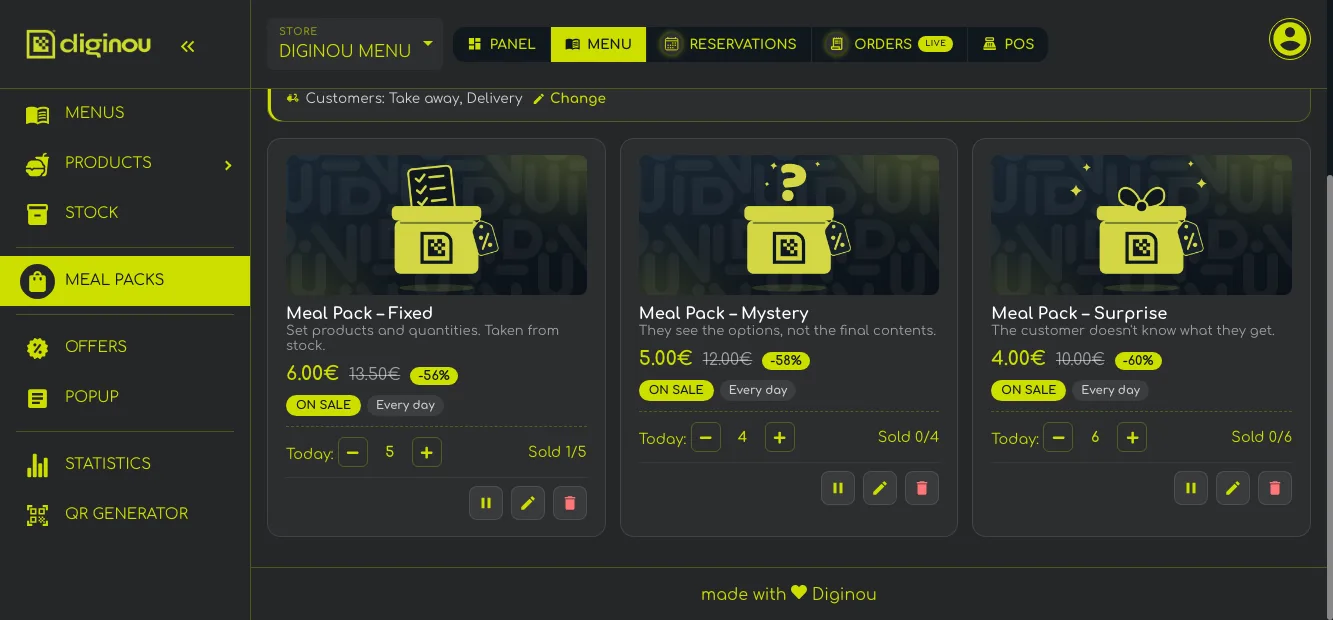
⤢ Enlarge
The menu’s Meal Packs: price, discount, how many you offer today and how many sold.
On the app's home, the "Save a Meal" tab lists stores with packs, nearest first: price, original value struck through, pickup time, pack type and how many are left.
On your menu the packs come first, in the "Save a Meal" section. Packs that sold out or closed for today are dimmed. Packs not offered today don't show at all.
The customer signs in, adds the pack to the cart and chooses Take Away or Delivery, from the ways you've turned on for Meal Packs. Their whole order is served together, in the pickup time.
They pay as for any order and see "Your order is confirmed!". You'll find it under Scheduled, in ORDERS → ACTIVE.
In MENU → MEAL PACKS, press Edit (the pencil) on a pack's card.
Press Summary in the steps at the top. How customers will see it shows the card as it appears on your menu. Close with ✕.
TIP
Customers see how many packs are left only when 20 or fewer remain. With more, they just see that the pack is on sale.
WATCH OUT
Customers need an account in the app to buy. Meal Packs are for their own day only: they don't go into a saved cart, "Order again" or a booking's pre-order. On a day set to Closed under Special days, no pack is sold.




