PAYMENTS & RECEIPTS
Issue, print or email an order's fiscal document, and cancel it with a credit note.
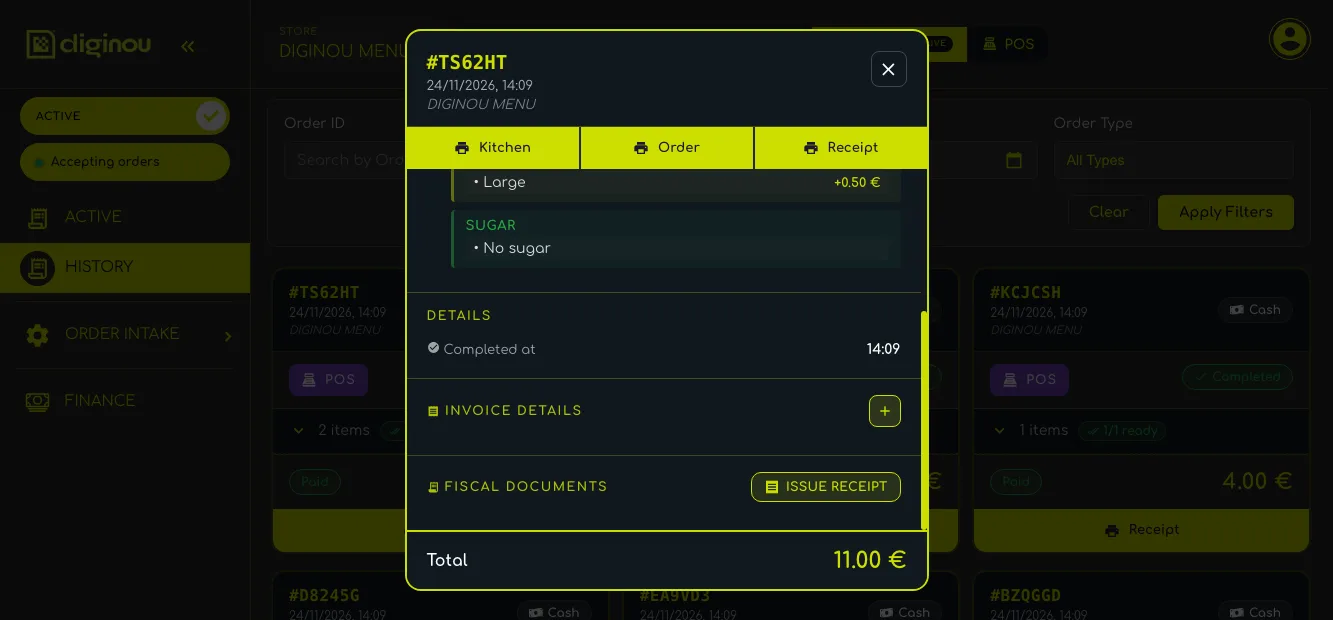
Each order's window ends with the Fiscal Documents section. From there you issue a receipt, or an invoice if the order has Invoice Details. You can print it, email it to the customer as a PDF, or cancel it with a credit note. Each document is signed by Viva, gets a MARK from AADE and a number from the store's series. The order card shows the outcome at the very top, e.g. Receipt issued or Fiscal issuance failed.
WHERE TO FIND IT
ORDERS → ACTIVE or HISTORY → order → Fiscal Documents
⤢ Enlarge
In the order, “Fiscal Documents” with “Issue receipt”.
Open the order and go to Fiscal Documents. For an invoice, fill in the Invoice Details first.
Press Issue receipt or Issue invoice. The document joins the list with its type, series and number, amount and MARK.
Press the printer icon to print it. Press Send by email to send it to the customer as a PDF. If there's no customer email, type it in Send fiscal document and press Send.
To issue and print in one go, press Receipt or Invoice on the order card. If a document already exists, the same one prints again.
Press Issue credit note, then Issue credit note again to confirm.
In Credit note issued successfully, choose Print, Send by email or Later.
The order unlocks. Correct what you need, e.g. the Invoice Details, and press Issue receipt or Issue invoice again.
Open PRINTER. Under Auto Print → Online Orders, turn on Auto Issue Receipt on Complete. For delivery you can also turn on Auto Issue Receipt when it leaves for delivery.
Under POS, turn on Auto Issue Receipt — POS Orders and, if you like, Auto Issue Receipt — Online Orders from POS.
Press Save Changes. The document is issued and printed automatically, as long as the order doesn't already have one.
TIP
With issuing when it leaves for delivery, the receipt prints the moment you press Delivering and goes in the bag. The courier's completion issues nothing.
WATCH OUT
A document without a MARK never prints. If Viva doesn't answer, you see Fiscal issuance failed: try again shortly. Diginou first asks Viva about the earlier attempt, so you never get two. While an active document exists, the products, payment and invoice details are locked. A credit note can't be undone, and internal consumption orders get no fiscal document.




