GETTING STARTED
Learn the tabs, the side menu, the store picker and your account menu.
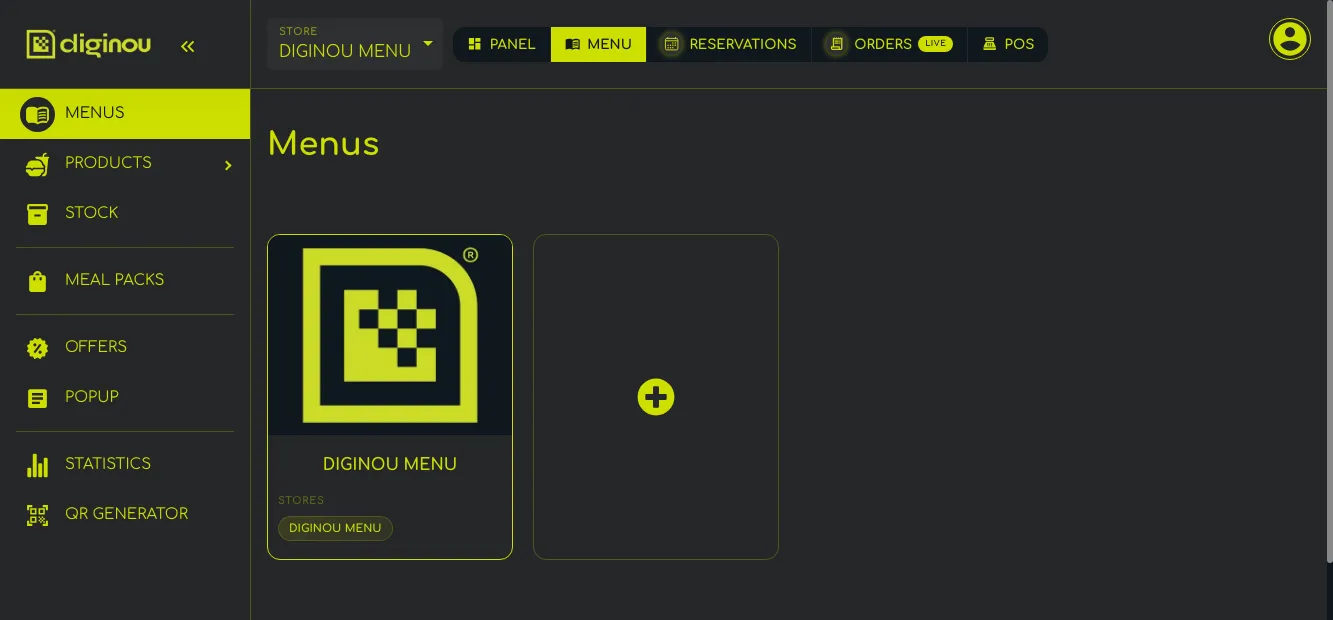
The panel is split into tabs at the top: PANEL, MENU, RESERVATIONS, ORDERS and POS. Each tab has its own side menu, except POS, which opens full screen. STORE sets which store you're looking at, and your photo at the top right opens your account menu.
WHERE TO FIND IT
Top of the panel → tabs · STORE · your account photo
⤢ Enlarge
The panel with Menu open: the tabs and the store at the top, the tab’s pages on the left.
Open STORE, to the left of the tabs (on a phone, in the top row).
Pick the store. You'll see Now viewing: with its name, and the store's pages now show that store.
Click your photo at the top right.
Depending on your role, you see Profile, Users, Settings, Subscription, Billing Details, Payments & Invoices and Support, which opens our contact form.
Under Language, choose Ελληνικά or English. The choice is kept in this browser.
Settings hides tabs on this device, and Logout signs you out of the panel.
From the same menu, click Profile. You see your role, your plan, the My subscription card and, for the owner and managers, whether the account is a Verified account.
Click your photo (Change photo) to pick or upload a new one.
Under Push Notifications, turn the switch on to get notifications on this device.
TIP
On a phone, the side menu opens from the three-line icon at the top left and closes as soon as you pick a page. On a computer, you can collapse it with the double arrows, and the panel remembers your choice. You don't change your password from Profile: sign out and click Forgot password? on the sign-in page.
WATCH OUT
Everything you do on store pages (menus, orders, settings) applies to the store selected under STORE. Check which one is selected before you change anything; opening a store from STORES doesn't change it. A POS cashier has no PANEL tab and no Users or Billing Details. Only the owner sees Subscription and Payments & Invoices, and Upgrade while on FREE.




